

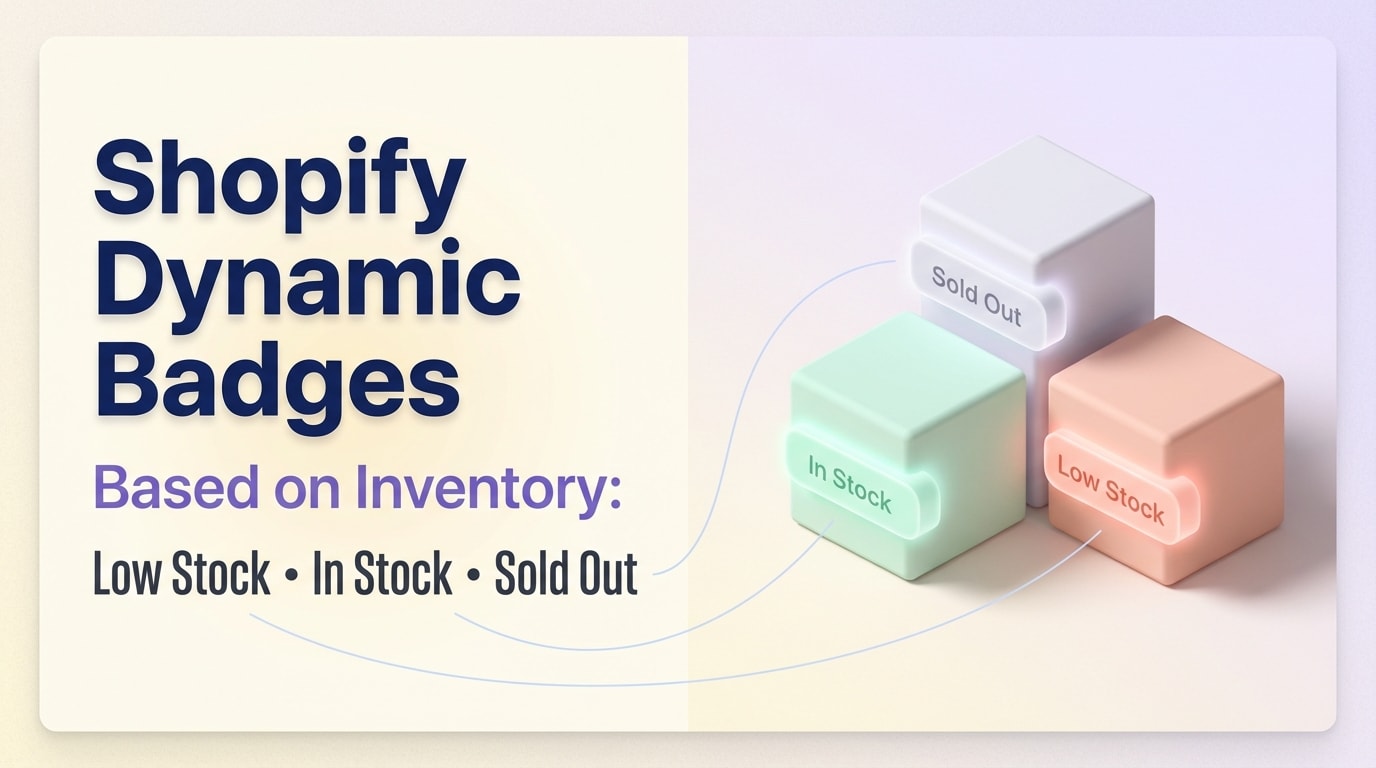
Shopify Dynamic Badges Based on Inventory: Low Stock, In Stock, Sold Out

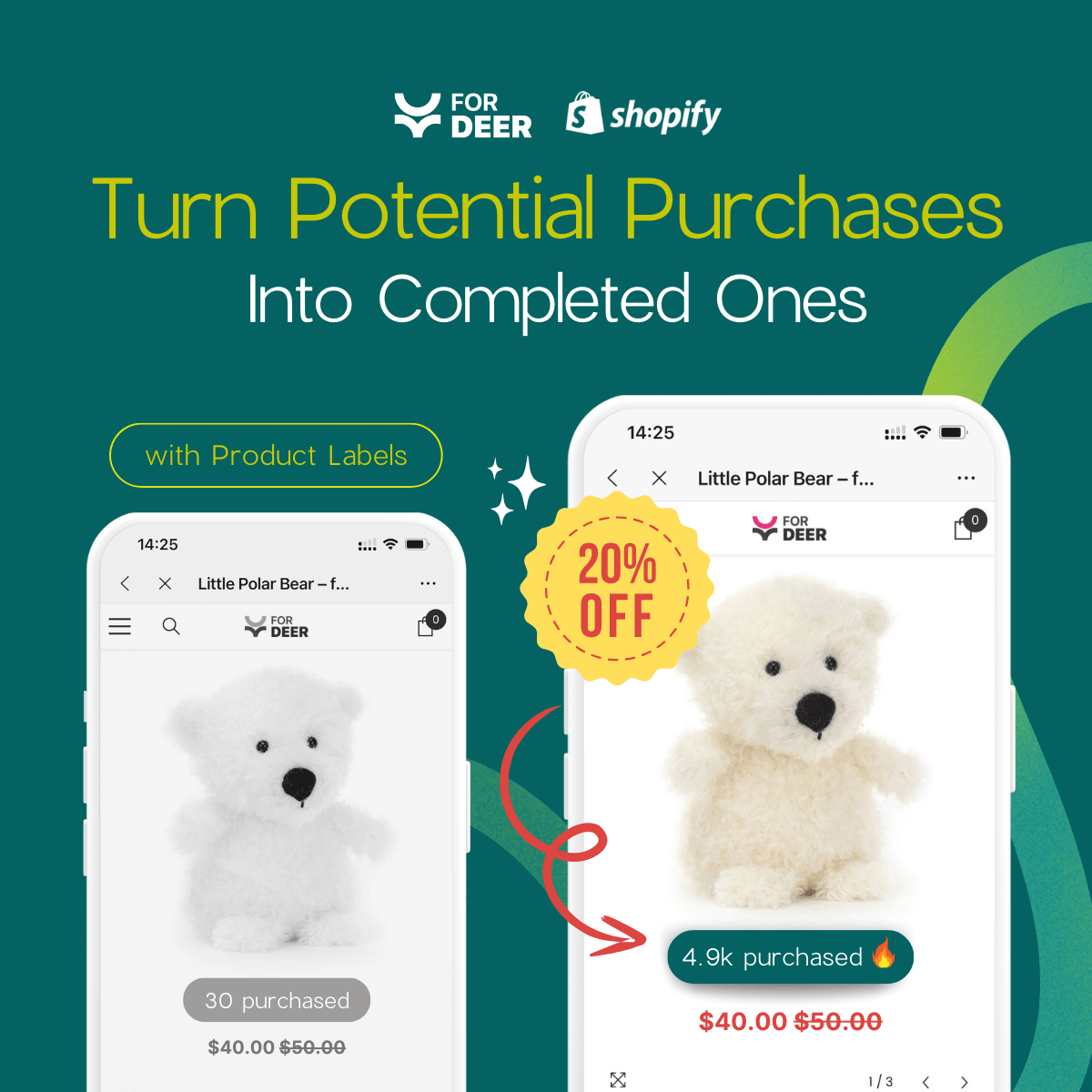
Merchants often install an inventory app, turn on low stock labels, and wait for a sales spike that never comes. Worse, they start noticing their storefront slowing down. If your store suffers from sluggish load times or badges that display the wrong stock counts, you are actively losing customers who are ready to buy.
Using a shopify badge for inventory level is one of the most effective ways to trigger FOMO and drive MOFU conversions. However, simply slapping a generic stock level display on your product pages is no longer enough in a competitive eCommerce landscape.
In this guide, we will break down why native Shopify inventory blocks fall short. We will uncover the hidden performance costs of popular label apps and give you actionable tips to optimize your inventory badges for maximum revenue.
Let's get started.
I. Overview of Native vs. Custom Inventory Badges
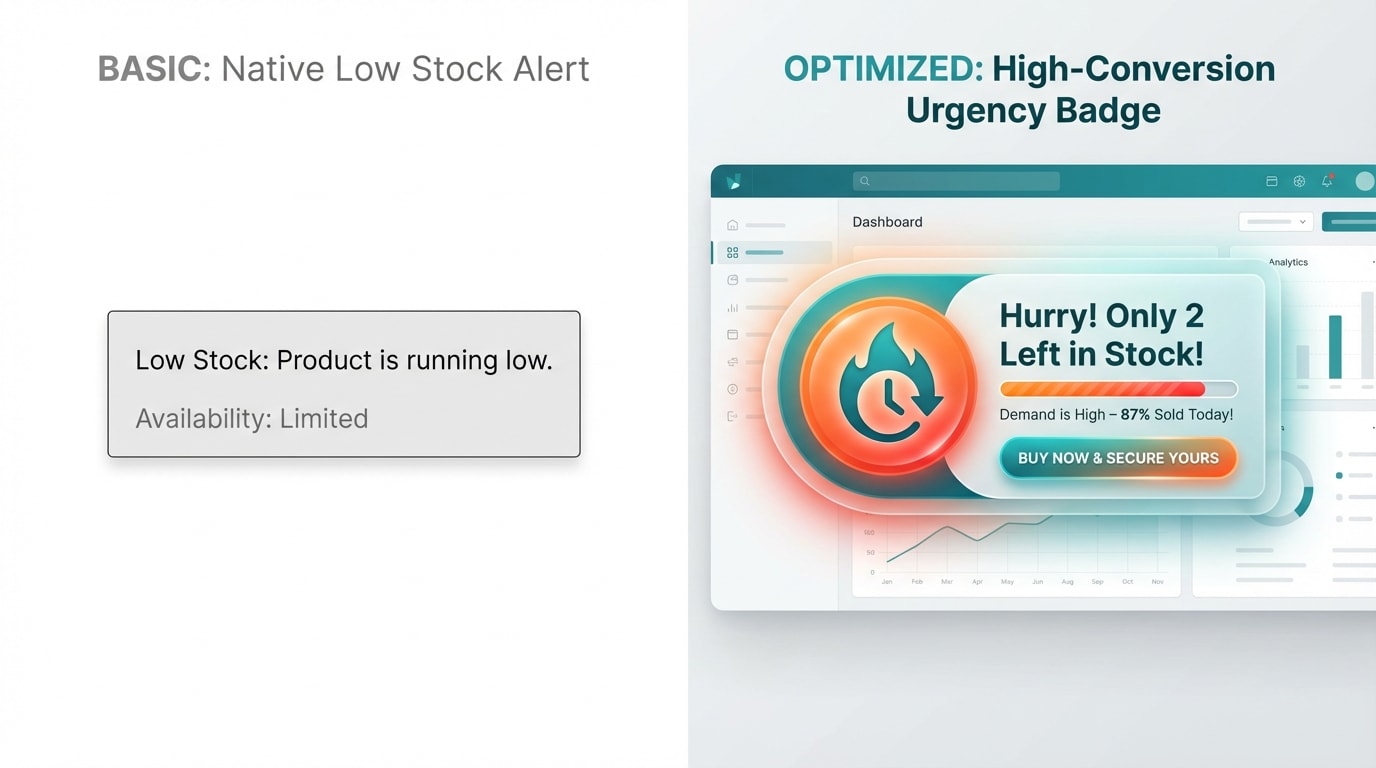
Native text blocks lack the visual urgency of customized product badges.
Relying on default theme settings often leaves money on the table. Here is why upgrading your inventory status display is crucial for immediate growth.
1. The Limitations of Native Shopify Blocks
Shopify OS 2.0 includes a basic inventory block. While functional, it serves purely as an informational text line. It lacks dynamic FOMO logic, meaning you cannot easily trigger different visual states based on specific stock quantities.
You also face severe styling constraints. Native blocks blend into your theme typography instead of standing out as high-converting urgency badges. Scaling stores quickly outgrow this native feature because it cannot automate complex threshold rules across different product categories effectively.
2. Why Custom Badges Drive More Revenue
Specialized urgency badges create a precise visual hierarchy. They draw the user's eye exactly where you want it before they make a purchasing decision. According to CXL, conversion rates can increase by up to 226% when using urgency and scarcity tactics effectively.
A custom product badge does more than state facts. Visual cues like bright colors and bold text push hesitant shoppers toward the checkout line. Learning how Automated Labels: Capture Instant Attention to Stand Out in Seasonal Sales gives you a massive advantage during high-traffic periods.
II. The Accuracy-Speed Tradeoff in Label Apps
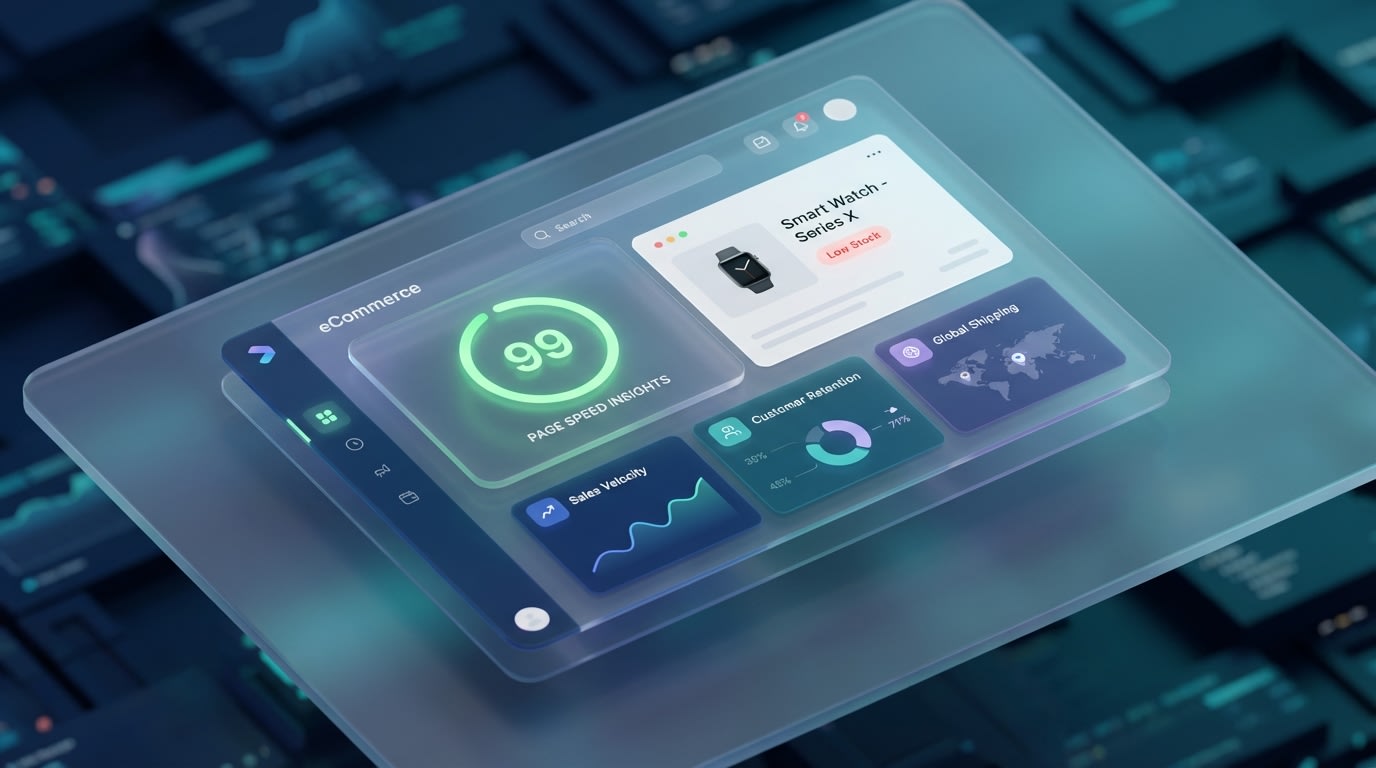
High conversion rates shouldn't cost you your Core Web Vitals.
Many merchants ruin their store performance by choosing the wrong limited stock notification app. You must balance real-time accuracy with fast loading times to succeed.
1. The Heavy Cost of JavaScript Polling
Most inventory apps use heavy JavaScript to constantly poll your server for real-time inventory syncing. Every time a customer loads a product page, the app fires multiple scripts to check the exact stock count.
This causes immediate app bloat and DOM manipulation delays. Akamai reports that 47% of consumers expect a web page to load in two seconds or less. If your inventory app adds a full second to your load time, it becomes a conversion killer. Customers bounce before the badge appears.
2. Liquid Integration and Asset Minification
You need a performance-first alternative. Leveraging server-side rendering through Shopify Liquid files allows your stock data to load instantly with the page HTML.
Performance-focused apps balance accurate inventory thresholds with optimized script loading. They minify assets so the browser does not have to work hard to display your custom product badges. You absolutely can have real-time accuracy and top-tier page speed at the same time.
III. 6 Tips to Boost Sales with Your Inventory Badges
Installing an app is just step one. Optimizing your rules and design is where the real revenue is made. Here are specific strategies to turn your stock level display into a conversion machine.
1. Set Dynamic Thresholds by Category
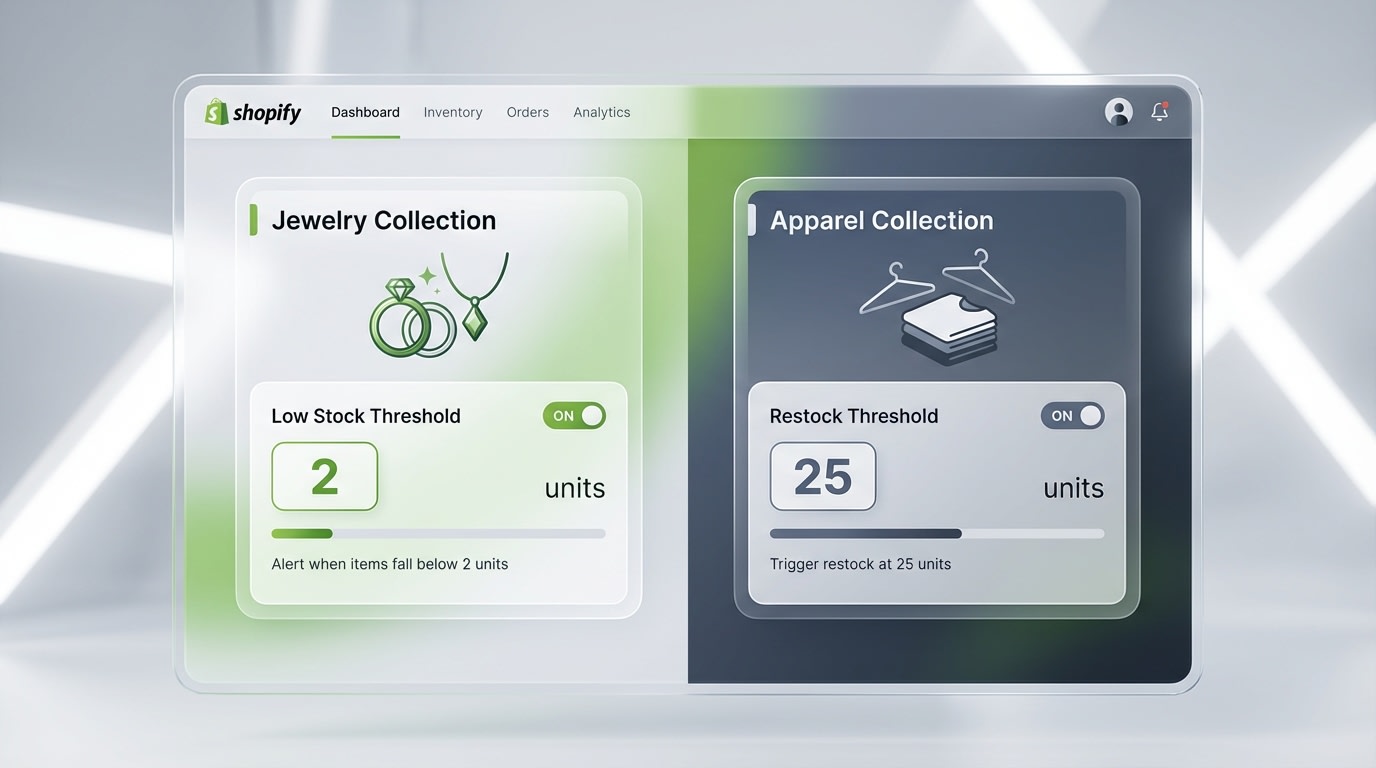
Customize your urgency triggers based on product type and sales velocity.
Not all products should trigger scarcity at the same number. A low stock warning for high-end jewelry makes sense at one unit, but fast-fashion t-shirts require entirely different rules.
Here's how to execute this:
- Analyze Sales Velocity: Identify which products sell out quickly and require higher alert thresholds.
- Automate by Category: Assign specific tags to product collections. You can easily optimize sales efficiency with automated inventory updates by applying threshold rules directly to these tags.
- Avoid False Scarcity: Never show low stock labels on items with hundreds of units. Customers spot fake urgency instantly, destroying your brand trust.
2. Leverage Specificity Over Ambiguity
Vague messaging rarely drives action. Exact numbers prove scarcity and force the buyer to make a quick decision.
- Stop using generic terms: The phrase Low Stock is ambiguous. It does not tell the customer how fast they need to act.
- Start using exact counts: Phrases like Only 3 Left prove the scarcity is real.
- Combine with Cart Data: Show messages like Only 3 left, and 1 is in someone's cart for maximum FOMO.
Pro Tip: If your inventory count bar dips below five, automatically switch your badge text color from yellow to urgent red to subconsciously signal a shrinking window of opportunity.
3. Configure Variant-Level Tracking
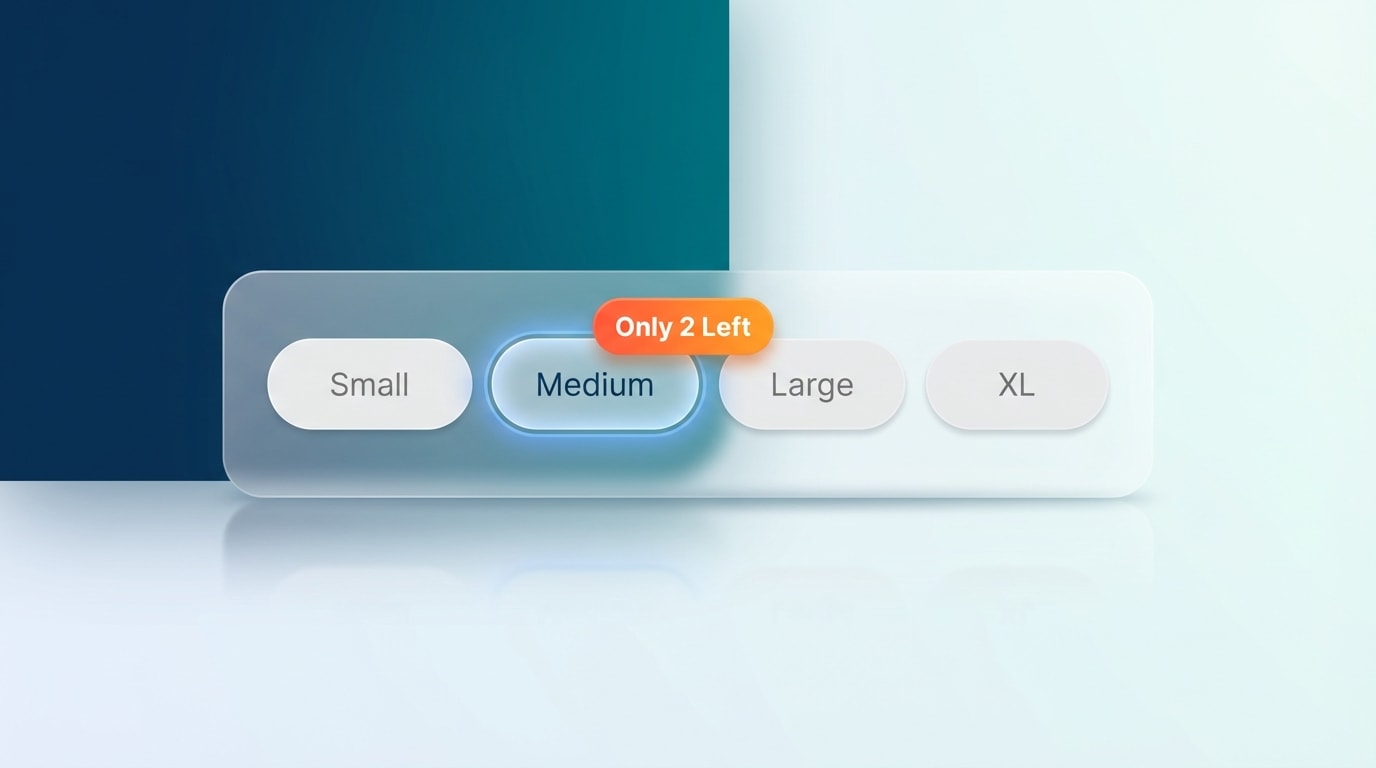
Ensure your badges update dynamically as customers select different variants.
Incorrect data for specific sizes kills conversions. If a customer selects a size Medium that has two units left, but the badge reads In Stock because the Large variant has fifty units, you lose the urgency completely.
Follow these steps:
- Isolate SKUs: Ensure your app tracks at the SKU and variant level, not just the parent product level.
- Test Visual Transitions: Click through your variants on the live store. Ensure the badge updates instantly without a page refresh.
- Hide Out of Stock Variants: If a variant hits zero, ensure the badge shifts smoothly to out of stock labels or hides the variant based on your theme settings.
4. Localize Badges for International Markets
Global stores need multi-language support. An English scarcity badge on a French checkout page creates a disjointed user experience and reduces customer confidence.
Here's how to manage localization:
- Use Translation APIs: Choose an app that integrates natively with Shopify Markets and popular translation tools.
- Customize Text by Region: Adapt the tone of your scarcity messaging to fit regional cultural expectations.
- Check Text Wrapping: Translated phrases are often longer than English words. Ensure they fit cleanly inside your customizable text blocks without breaking mobile layouts.
5. Design for Mobile-First Readability
The majority of impulse buys driven by FOMO happen on mobile devices. A beautifully designed desktop badge will often overlay and block vital product images on smaller screens.
Focus on these mobile adjustments:
- Positioning: Anchor inventory labels to the top-left of product images. Alternatively, place them directly above the price on mobile layouts.
- Sizing: Keep custom product badges large enough to read, but small enough to avoid visual clutter.
- Contrast: Use high-contrast color schemes. White text on deep red backgrounds ensures perfect readability on dimmed screens.
6. Audit Your Post-Install Performance
You must ensure your one-click setup has not negatively impacted your organic search rankings by tanking your site speed.
Run these performance checks:
- Run PageSpeed Insights: Test your product pages before and after activating your stock level display.
- Check Mobile Scores: Pay special attention to the mobile load time. This is where heavy JavaScript hurts the most.
- Review CSS Conflicts: Inspect your live site to ensure the app's styling does not conflict with your existing theme CSS. Layout shifts cause immediate abandonment.
Using lightweight code, like that found in Fordeer Product Labels, helps you pass these critical audits effortlessly.
IV. Conclusion
Setting up a shopify badge for inventory level isn't just about turning on a switch. By carefully managing your inventory thresholds, prioritizing variant-level accuracy, and keeping a strict eye on page load speeds, you leverage genuine scarcity to dramatically lift your conversion rates.
You do not have to choose between a fast store and a high-converting one. Start small, test dynamic thresholds on your fastest-moving products, and watch how your audience responds to real urgency.
Follow the Fordeer Team for more useful updates!
- Install Fordeer Apps for Free
- Get immediate assistance by chatting with us
- Join Fordeer Commerce Community for fresh app updates, expert tips, and private deals.