

Made in USA Badges on Shopify: When National Pride Drives Purchases

Adding provenance labels to your catalog sounds simple until you realize you have to manually tag 500 products. Worse, placing an unofficial graphic on your product images without understanding the legal guidelines can actually harm your brand credibility.
With buyers increasingly conscious of where their products come from, displaying a Shopify made in label badge has become essential for building trust. But in 2024, merchants are moving away from hard-coding Liquid files or settling for blurry PNGs. They need automated, high-resolution solutions that scale as their inventory grows.
In this guide, we will break down the exact legal and technical requirements for provenance badges. We will show you how to automate your label placements, protect your site speed, and leverage visual assets to boost your organic image SEO.
Let's get started.
I. The True Impact of Provenance Product Labels
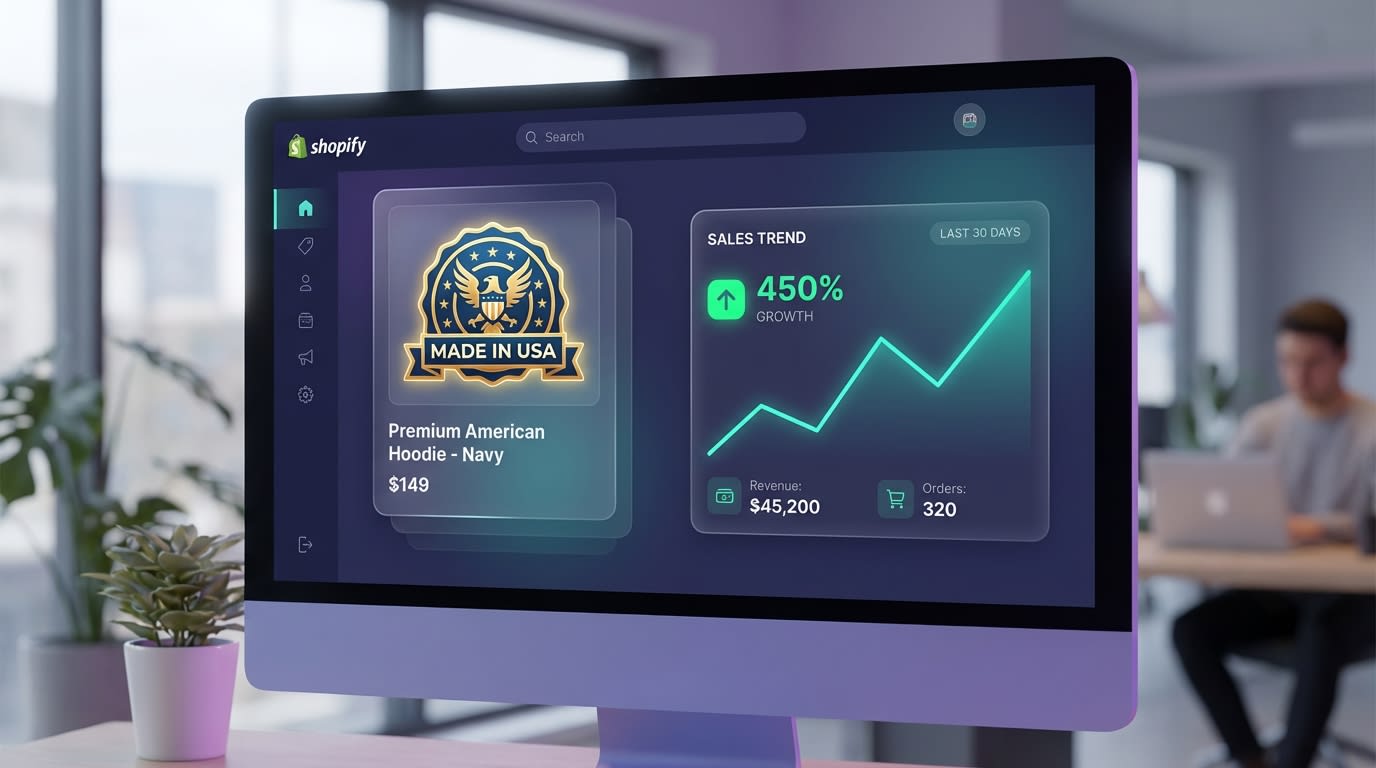
A properly implemented badge does more than look good—it drives trust and organic traffic.
1. Navigating FTC Compliance and Legal Guidelines
You cannot simply slap a "Made in USA" badge on any product shipped from an American warehouse. The Federal Trade Commission (FTC) enforces strict standards for these claims.
To use an unqualified origin badge, your product must meet the "all or virtually all" standard. This means all significant parts and processing must be of US origin. If your product contains imported materials, you must use a qualified claim like "Assembled in USA from imported parts." Using highly accurate custom badges protects you from legal liability and builds genuine customer trust.
2. The Hidden SEO Benefit for Google Images
Product badges are not just for Conversion Rate Optimization (CRO). When appropriately coded, they serve as powerful SEO assets.
A high-quality visual badge on a primary product image increases the Click-Through Rate (CTR) from the Google Image Search tab. Shoppers visually scanning for local products will click your image first. Combining visual labels with Schema.org product metadata signals relevance directly to search engines. For a deeper dive into visual strategy, check out our guide on How to Use Product Labels to Highlight Special Offers on Shopify.
3. SVG vs. PNG: Protecting Your Site Speed
Using standard PNGs for product badges slows down page load times, especially on mobile devices. According to Portent, eCommerce sites with a 1-2 second loading time have a 3.05% conversion rate. Every extra second of delay kills your sales.
You need to use SVG (Scalable Vector Graphics) assets. SVGs are mathematically rendered, meaning they provide crisp, retina-ready displays that never pixelate. More importantly, their file sizes are tiny and do not bloat your Shopify theme code.
II. 5 Steps to Add and Automate Your Product Badges
While some competitors recommend average word counts of under 300 words for this topic, setting up a label system properly requires a strategic approach. Here are the most effective ways to deploy your labels.
1. Leverage Native Shopify Metafields
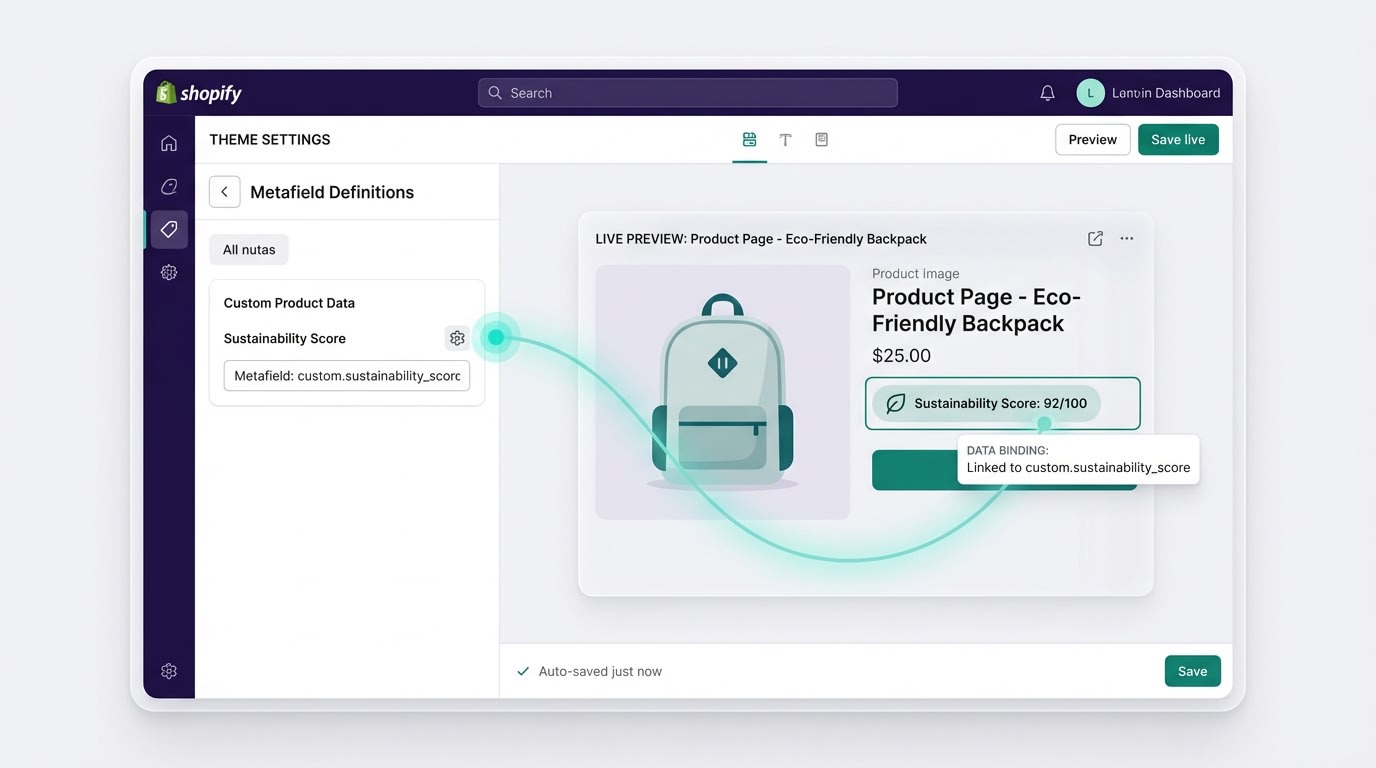
Using dynamic sources in the Theme Editor connects your product data directly to your visual labels.
For merchants comfortable with manual setup, metafields are the standard technical method for displaying unique badges per product.
Why this matters: It prevents the nightmare of having a "Made in Italy" badge accidentally show up on a dropshipped import.
How to implement:
- Create a Definition: Go to Shopify Settings > Custom Data > Products and create a true/false metafield for your specific label.
- Update Products: Navigate to your product catalog and toggle the metafield to "true" where applicable.
- Link in Theme Editor: Open your product template, add a custom image block, and click the "Dynamic Source" icon to connect it to your new metafield.
This method is reliable but highly manual if you have hundreds of SKUs.
2. Automate Labels Based on Product Tags
If you have a massive catalog, manually checking metafield boxes is not a scalable option.
Why this matters: Automation eliminates human error. It ensures new inventory automatically displays the correct provenance label the second it goes live.
How to implement:
- Establish a Tagging Convention: Standardize your back-end product tags (example:
Country: USAorCountry: Japan). - Use Conditional Logic: Utilize an app to create an automated rule based on these specific tags. Need inspiration for your tagging rules? Discover Creatives Ideas to Utilize Shopify Product Badges to Attract Customers to expand your strategy.
- Map the Asset: Set the rule so that whenever the tag
Country: USAis detected, the corresponding vector badge is instantly overlaid on the product card.
Pro Tip: Combine location tags with inventory tags. Set your automation to hide the origin badge if the product tag includes Out of Stock. This keeps visual focus entirely on available items.3. Utilize the Native Theme Editor "Badges" Block
Many modern Online Store 2.0 (OS2.0) themes come with built-in badge capabilities. These are often hidden or underutilized by merchants.
Why this matters: Using native theme blocks guarantees that your labels will not break your site's mobile responsiveness.
How to implement:
- Check Theme Support: In the Theme Editor, look for a "Product Labels" or "Badges" block under your Product Information section.
- Customize CSS: If the block exists but only allows text, use the Custom CSS feature in OS2.0 to inject your background badge image.
- Positioning: Ensure the block is positioned near the product title or price. This guarantees maximum visibility during the critical consideration phase.
4. Optimize Labels for Variant-Level Display
One of the biggest mistakes merchants make is applying a blanket label to a product that has variants sourced from different countries.
Why this matters: FTC compliance requires strict accuracy. If your "Blue" variant is manufactured domestically but your "Red" variant is imported, a generic product-level badge is illegal and misleading.
How to implement:
- Assign Variant Metafields: Instead of product-level data, assign your origin data directly at the variant level.
- Dynamic Updating: Ensure your theme uses Liquid logic that refreshes the badge asset dynamically when a user clicks a different color or size.
- Fallback Assets: Set a neutral "Imported" or blank fallback state if a specific variant lacks origin data.
5. Schedule Dynamic Seasonal Campaigns
Your provenance labels do not have to remain static all year round.
Why this matters: Highlighting domestic manufacturing during specific holidays (like Independence Day or local shopping events) dramatically boosts conversions.
How to implement:
- Design Festive Variations: Create unique seasonal designs of your standard origin badge.
- Set Timers: Use advanced label automation to schedule the festive badge to replace the standard one at midnight on the first day of your campaign.
- Auto-Revert: Ensure the system automatically reverts to the standard SVG badge once the promotion ends. This prevents outdated labels from lingering on your site in August.
III. Troubleshooting Common Theme Integration Issues

Not all themes handle visual labels perfectly right out of the box. Here is how to fix common glitches.
Even with the best preparation, integrating custom visuals into varied Shopify themes presents challenges. Here are the most common hurdles and how to resolve them quickly.
1. Dealing with Missing Theme Blocks
The Problem: You are using an older theme, or a highly customized template, that simply does not feature a dedicated badges block in the editor.
The Solution: You have two options. First, manually edit your main-product.liquid or product-card.liquid files to insert a custom HTML div that calls your metafield data. Alternatively, using a third-party labeling app like Fordeer Product Labels bypasses theme limitations entirely. The app injects the label directly over the product image container without requiring any code edits.
2. Fixing Mobile Display Overlaps
The Problem: Your beautiful vector badge looks great on a desktop monitor but obscures critical product details or text on mobile screens.
The Solution: Badges must scale conditionally. If you are coding manually, ensure your CSS uses relative units (%, vw, or vh) rather than fixed pixels (px). Apply CSS media queries to reduce the badge size by at least 30% on screens smaller than 768px. The product itself must remain the hero of the image.
3. Managing Visual Clutter
The Problem: Your product features a "Made In" badge, an "On Sale" sticker, and a "Low Stock" alert simultaneously. This creates a messy, spammy appearance.
The Solution: Establish a strict visual hierarchy. Limit your product cards to a maximum of two badges simultaneously. Use smart conditional logic to prioritize labels based on the sales funnel. For instance, a "Low Stock" urgency badge should temporarily override an origin label to drive immediate checkout. It will then revert back to the origin badge once inventory is replenished.
IV. Conclusion
Deploying an accurate, high-quality provenance label system is one of the smartest investments you can make for your Shopify store. By understanding FTC compliance, leveraging SVG assets for image SEO, and automating your placements via product tags or metafields, you eliminate manual catalog management while building genuine trust with your buyers.
Preparation is key. You don't have to tackle everything at once. Whether you choose to map your tags manually or automate the entire process, upgrading your product presentation is completely within your reach. Each step you take will pay dividends in your conversion rates!
Follow the Fordeer Team for more useful updates!
- Install Fordeer Apps for Free
- Get immediate assistance by chatting with us
- Join Fordeer Commerce Community for fresh app updates, expert tips, and private deals.