

Mixed Cart Pre-Orders on Shopify: How to Handle In-Stock and Pre-Order Items Together


There is nothing more frustrating for a merchant than watching an in-stock item sit unfulfilled in a warehouse simply because it shares a checkout with a pre-order product. Customers pay a single shipping fee. You are left to either eat the cost of two separate shipments or deal with angry buyers demanding their available items immediately.
Handling a shopify mixed cart pre-order in stock scenario is one of the most common logistical bottlenecks for growing brands. While the Shopify Admin interface is user-friendly, its checkout logic natively limits how shipping rules apply to split carts. This causes downstream errors with inventory counts and fulfillment software.
In this guide, we will break down the shadow inventory trap. We will compare native solutions against third-party apps and show you exactly how to split fulfillment efficiently. Let's get started!
I. Overview of the Mixed Cart Dilemma

Mixed carts often create hidden bottlenecks in standard fulfillment workflows
Mixed carts disrupt standard operations. Before fixing the checkout, you need to understand exactly where the process breaks down.
1. The Shadow Inventory Trap
A mixed cart locks both items into an unfulfilled status. When a customer buys an available t-shirt alongside a backordered jacket, standard Shopify logic holds the entire order together. This blocks your 3PL API from routing the in-stock item for immediate shipping. External fulfillment software like ShipStation or ShipHero will view the entire order as pending. The result is stagnant inventory taking up shelf space and delayed cash flow while you wait weeks for the second item to arrive.
2. The Single Shipping Fee Problem
Native Shopify checkout charges shipping once per order. When forced to send a split shipment later to appease a waiting customer, you lose margin paying for that second shipping label. Dimensional weight changes when you split a single planned box into two separate packages, which drives your shipping expenses even higher. Furthermore, customer experience plummets when delivery expectations for each individual item remain unclear at checkout.
3. Banking and Compliance Risks
Payment gateways monitor your fulfillment speed. Merchant Banking Standards generally enforce a strict 30-day fulfillment window for captured funds. If you hold high-ticket payments while waiting for manufacturing delays on a mixed cart, you risk triggering payment gateway audits or frozen funds. Standard authorization and capture limitations mean credit card holds expire before the product even lands in your warehouse.
II. Pre-Order Apps vs Native Shopify Limitations
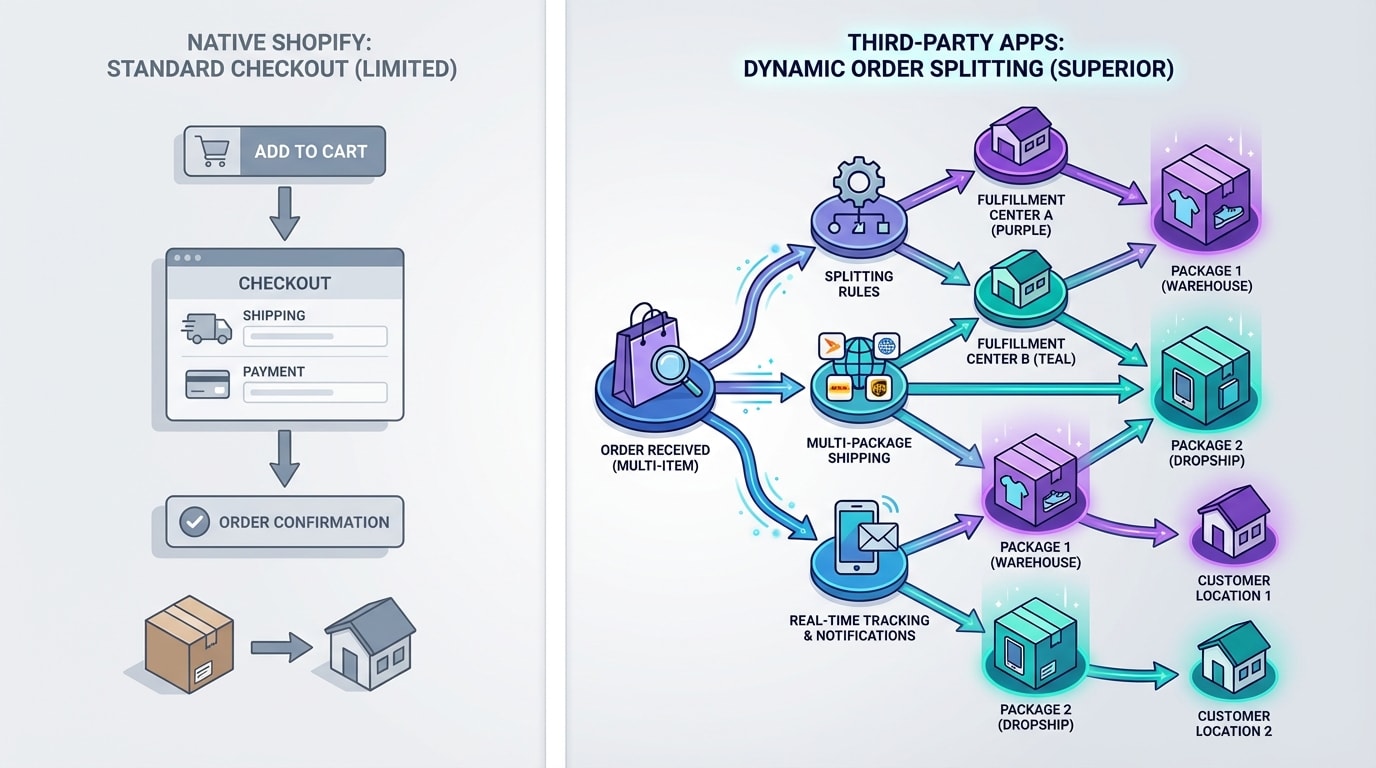
Choosing the right infrastructure dictates how your 3PL handles partial fulfillment
Merchants must choose an infrastructure before fixing their workflows. Here is how your options stack up.
1. Shopify Native Purchase Options
Shopify offers built-in purchase options directly in the Admin. It allows you to label items clearly on the product page.
- Pros: Completely free and integrated seamlessly with your existing product pages.
- Cons: Lacks robust split-shipping rate calculations at checkout. It leaves the heavy lifting of manual separation to the merchant.
- Best for: Simple catalogs with very short lead times where split shipments are rare.
2. Dedicated Order Splitting Apps
Third-party apps handle cart separation dynamically and improve the user experience. Tools like Fordeer PreOrder Now duplicate orders or charge split shipping directly at checkout. This protects your margins by creating separate fulfillment statuses immediately. Using a dedicated pre-order app shopify merchants trust is crucial for complex catalogs. To understand how to implement these tools effectively, check out our 5-Step Preorder & Presale Strategy to Build Customer Loyalty on Shopify.
3. The 3PL Inventory Sync ('Committed' vs 'Available')
Your 3PL relies on accurate data. There is a critical difference between Shopify committed stock and actual warehouse routing availability. Misconfigured syncs cause massive stockouts because the system allocates inventory incorrectly. Your chosen app must communicate partial fulfillment clearly to the warehouse API. This ensures the system knows exactly which line item to pick and pack today.
III. 6 Strategies to Resolve Mixed Cart Fulfillment
Managing mixed orders requires a blend of checkout strategy, inventory mapping, and proactive customer service. Here are the most effective workflows to implement.
1. Set Up Separate Shipping Profiles for Pre-Orders
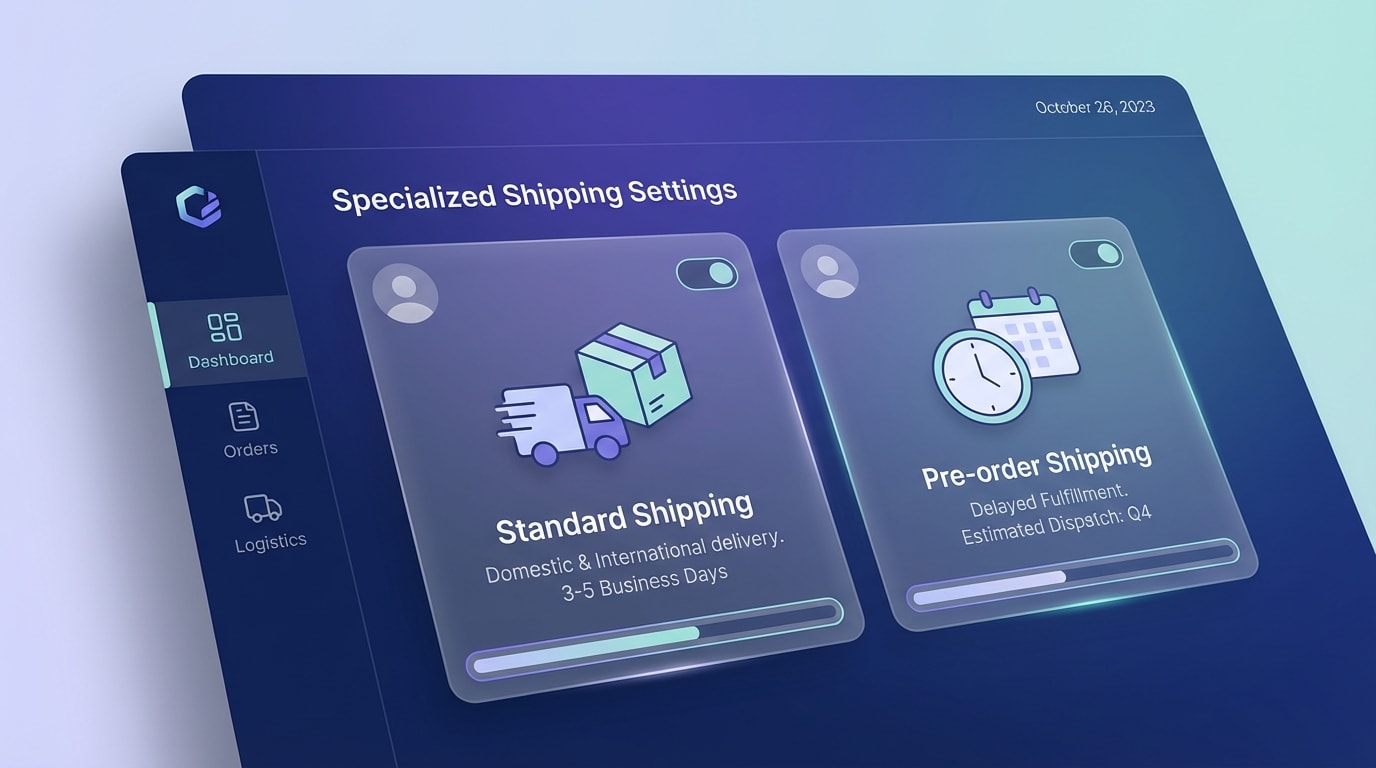
Using custom shipping profiles ensures you don't absorb the cost of a second delivery
Creating distinct Shipping Profiles is your first line of defense against margin erosion.
Why this matters: When a customer checks out with a mixed cart, Shopify combines the weights and rates based on profiles. By isolating pre-orders into a custom profile, you can force a combined shipping rate that covers the inevitable split shipment.
Here's how:
- Create the Profile: Navigate to Settings, then Shipping and Delivery. Create a new profile specifically for incoming stock.
- Assign Products: Move all pre-order variants into this new profile.
- Adjust the Rates: Set flat or calculated rates that account for the secondary shipping label you will purchase when the item lands. For example, add a flat $5 surcharge to standard shipping rules for these specific variants.
This ensures you aren't paying out of pocket to ship the backordered item three weeks later.
2. Implement the "Alert vs. Restrict" Cart Strategy
You must decide whether to warn customers about mixed carts or block them entirely.
Why this matters: Preventing a mixed cart from reaching checkout is easier than untangling the logistics later.
Here's how:
- The Alert Method: Use an app to trigger a cart pop-up warning. State clearly that in-stock items ship immediately while pre-orders ship later.
- The Restrict Method: Configure your app to block checkout if both item types are present. This forces the user to create two separate transactions.
- Evaluate: Use the restrict method for heavy items like furniture where shipping losses are catastrophic. Use alerts for lightweight apparel where absorbing a second small shipment is manageable.
3. Automate Partial Fulfillment Workflows
Stop manually splitting orders in the backend.
Why this matters: Manually deciding which items to fulfill daily is a massive time sink. It also introduces human error during high-volume sales events.
Here's how:
- Leverage Location Routing: Ensure your in-stock items are prioritized for your active 3PL location.
- Use Shopify Admin Splitting: From the order page, click "Fulfill Item" only for the available product. This changes the status to Partially Fulfilled.
- Sync with your 3PL: Confirm your warehouse software pulls Partially Fulfilled statuses, not just Unfulfilled bulk orders.
Pro Tip: Always capture payment manually if you use partial fulfillment for high-ticket items. This keeps you within the 30-day vaulting compliance window.
4. Deploy "Split Shipment" Email & SMS Flows

Proactive communication stops "Where is my order?" tickets before they happen
Customer anxiety spikes when they open a box and find half their items missing.
Why this matters: You can eliminate 90% of your mixed cart support tickets by beating the customer to the inbox.
Here's how:
- Update the Order Confirmation: Edit your Shopify notification template to dynamically state if an item is backordered.
- The 'Partially Shipped' Trigger: Set up a Klaviyo flow triggered by the Partially Fulfilled status.
- The Script: Tell them great news, the in-stock portion of Order #1234 is on its way. Reassure them the pre-order item is safely reserved and provide the target ship date.
5. Fix Inventory "Committed" Status Errors
Your 3PL makes decisions based on what Shopify tells it is available.
Why this matters: If an app does not accurately manage committed stock, Shopify might tell your 3PL an item is ready to ship when it is still on a cargo ship.
Here's how:
- Audit the App Logic: Ensure your solution intercepts the order before Shopify deducts physical inventory.
- Use Virtual Locations: Set up a "Pre-Order Warehouse" location in your Shopify Admin.
- Route Carefully: Assign pre-order inventory to this virtual location. Your actual 3PL never sees the committed request until you manually transfer the stock inside Shopify upon arrival.
6. Utilize Advanced Shopify Flow Automations
For Shopify Advanced and Plus merchants, automation is your best friend.
Why this matters: You can bypass app fees and manual checks by building If/Then logic directly into the admin. For broader insights into these marketing and operational tools, check out Boosting Pre-Order and Pre-Sale Success: Strategies to Drive Anticipation and Increase Sales.
Here's how:
- Create a Trigger: Order created.
- Set the Condition: Check if line items contain a pre-order tag AND standard items.
- Add the Action: Automatically add an internal order tag like MIXED-CART-REVIEW and send a Slack notification to your fulfillment team.
- Add Customer Action: Automatically trigger an internal email prompting your customer service team to manually send the split shipping template.
IV. Technical Implementation for the Cart Page
Fixing the backend logistics is only half the battle. You must manage expectations on the front end before the transaction happens.
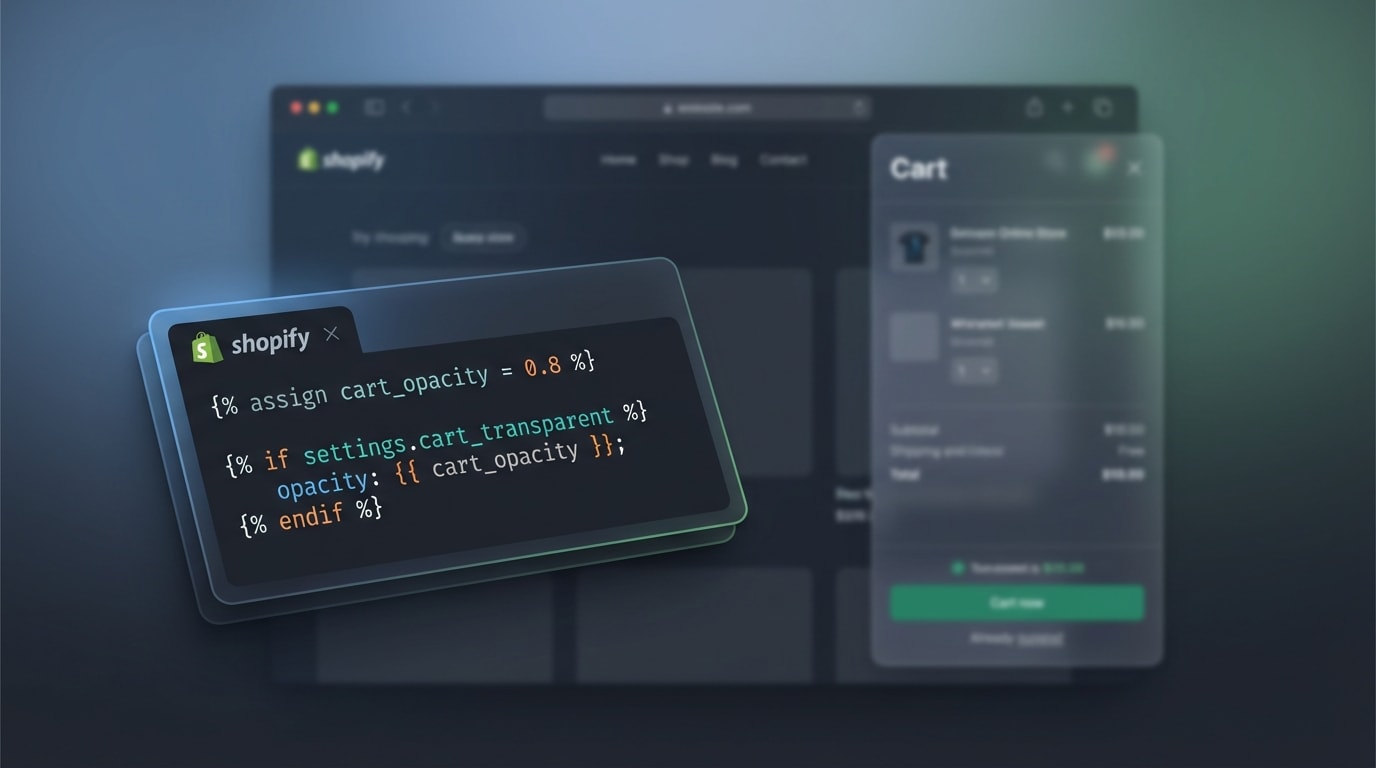
Adding simple Liquid snippets can dramatically improve the mixed cart checkout experience
1. Liquid Snippets for Partial Shipment Warnings
You can edit your cart.liquid or main-cart-items.liquid files for better transparency. The concept involves looping through cart items to check for a specific tag. If a cart contains both a pre-order tag and a standard item, you can display a custom HTML warning banner directly above the checkout button. This simple addition sets expectations immediately and prevents chargebacks and refund requests.
2. Updating the Checkout UI
Merchants on Shopify Plus can use Checkout Extensibility, while standard plans can rely on language edits. Try changing the default "Shipping" label to "Shipping (Split Deliveries May Apply)". You should also set clear terms and conditions checkboxes specifically tied to mixed fulfillment timelines so buyers know exactly what to expect before submitting payment.
3. Managing Deferred Charges (Vaulting)
Setting up authorization and capture correctly is essential. Remember that credit card authorizations expire. The technical workflow requires capturing the in-stock amount immediately. You then vault the remaining card data securely. This allows you to charge the pre-order balance only when the item finally ships from your warehouse.
V. Conclusion
So there you go. Managing a Shopify mixed cart pre-order in stock situation doesn't have to break your fulfillment process or your profit margins. By utilizing separate shipping profiles, configuring your 3PL sync correctly, and automating communication for partial shipments, you can confidently accept revenue for backordered items while keeping your daily operations smooth. You don't have to tackle everything at once. Start by updating your cart warnings and email flows today.
You've got this! Proper logistics setup protects your bottom line and builds lasting trust with your customers.
Follow the Fordeer Team for more useful updates!
- Install Fordeer Apps for Free
- Get immediate assistance by chatting with us
- Join Fordeer Commerce Community for fresh app updates, expert tips, and private deals.