

Shopify Product Badges in Multiple Languages: A Guide for International Stores
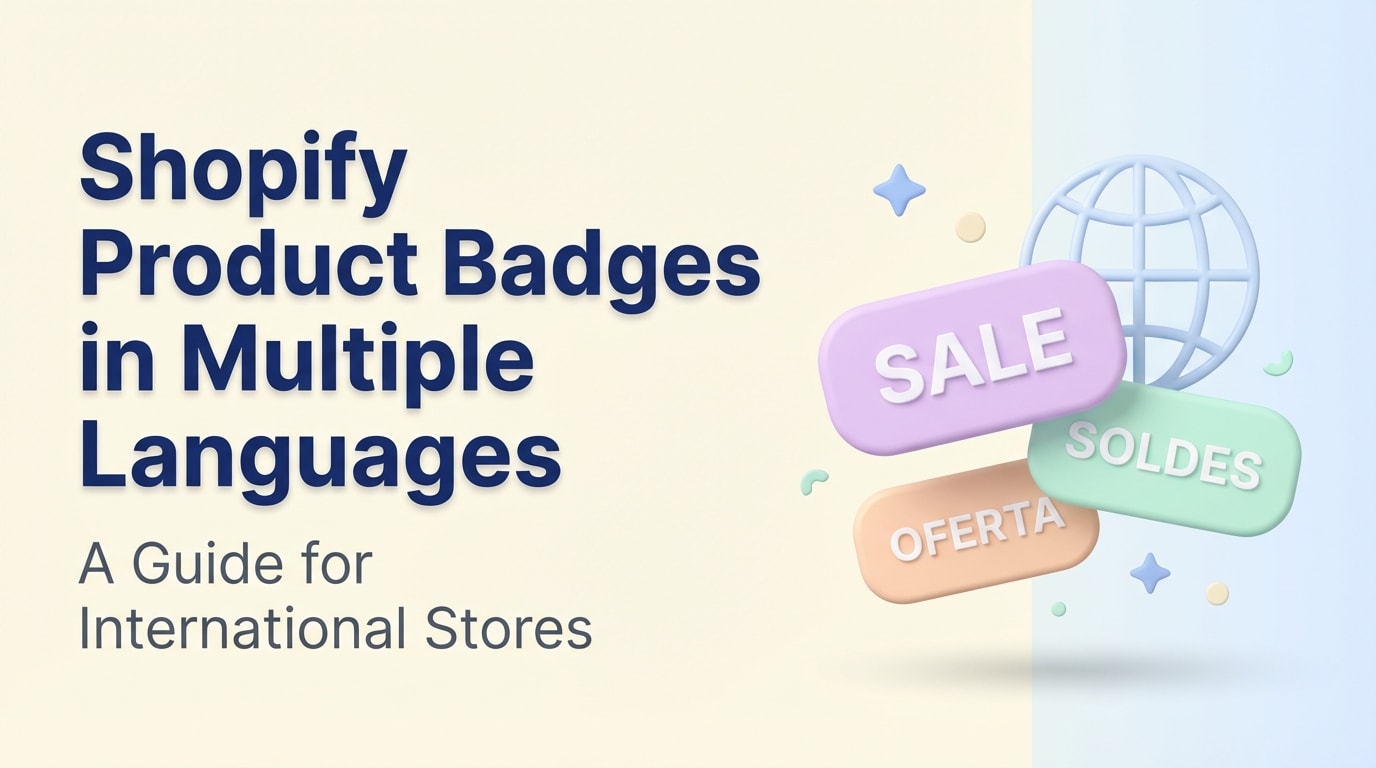

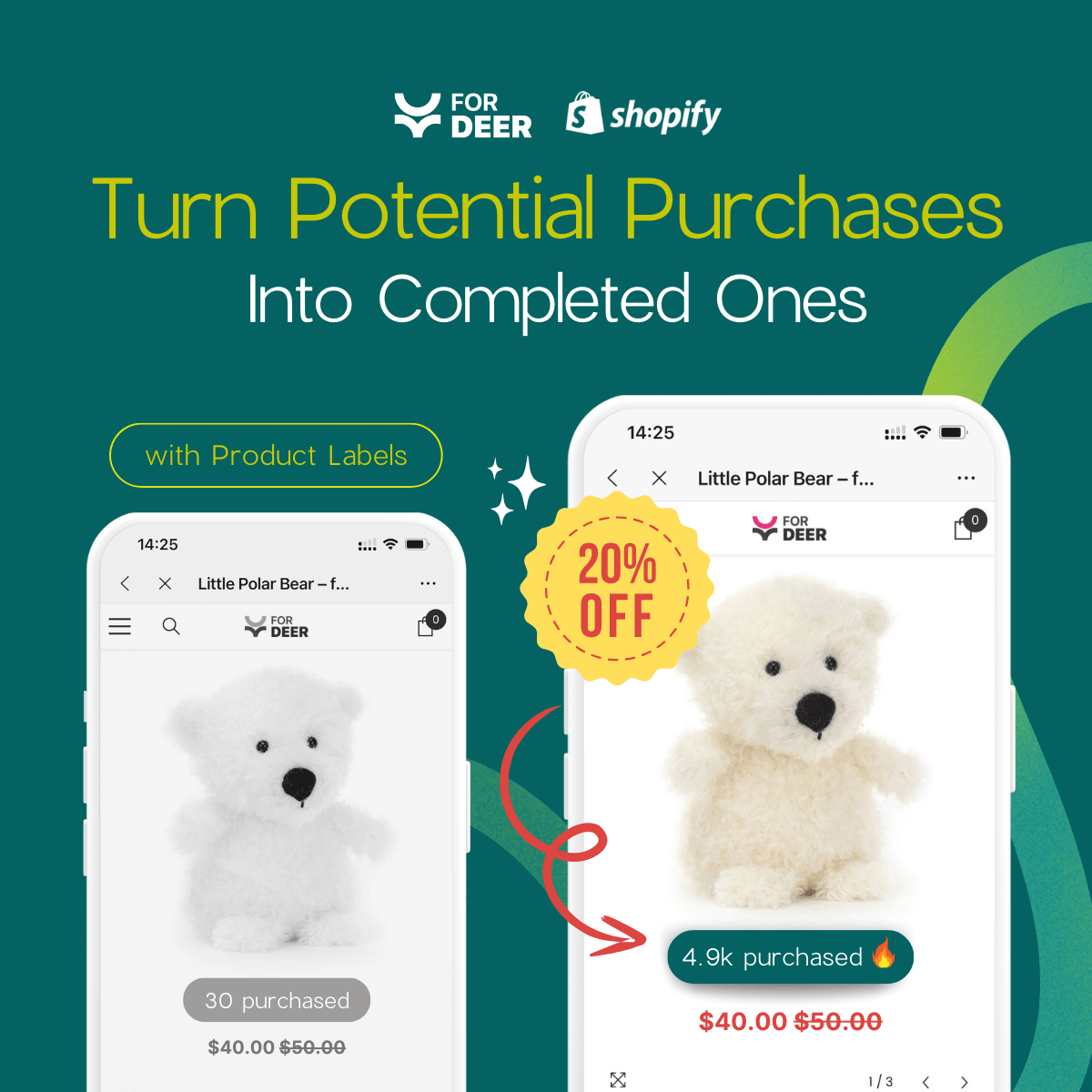
You spend hours localizing your Shopify store, only to realize your Bestseller or Out of Stock labels are still stuck in English. Sound familiar? When product badges refuse to translate, it shatters the localized experience. Considering 75% of consumers are more likely to buy from websites in their native language, a broken badge can be a silent conversion killer.
Native tools like the Shopify Translate & Adapt app handle product descriptions beautifully. However, they often miss hardcoded theme files and text embedded in images. Figuring out how to configure a Shopify badge for multiple languages requires looking past basic app settings and diving slightly into how your theme renders text.
In this guide, we will explore exactly why your labels get left behind. You will learn actionable methods to translate hardcoded badges, dynamic inventory setups using Metafields, and advanced CSS techniques to keep your international storefronts looking flawless.
Let's get started.
I. Overview of Shopify Badge Translation Issues

When your store is in French but your badges are in English, buyer trust drops immediately.
Standard translation apps work by scanning your Shopify store for specific text files. When they encounter elements built outside of those standard files, localization breaks down.
1. Why Standard Apps Miss Your Badges
Apps like Weglot or Langify rely on standard JSON locale files or dynamic product inputs. They cannot inherently read or override text that a developer hardcoded directly into your theme's Liquid files. If your theme file contains raw English text for a promotional badge, standard apps will ignore it completely. This results in a frustrating mixed-language storefront.
2. The Text-in-Image Dilemma
Uploading badge images with text baked into the graphic is a common mistake. If your badge is a single PNG file with the word "Sale" written across it, no translation app can change that text. This forces you to manually recreate, upload, and assign new image variations for every single region. This process drains your time and negatively impacts your site speed.
3. Impact on International SEO and CRO
Google Search Central guidelines prioritize fully localized pages for multi-regional SEO. A unified page with dynamically translated labels reduces bounce rates and increases decision-making confidence for international buyers. If you want to maximize this impact, check out our guide on Product Badges: How to Make Your Products Stand Out and Drive Sales to see exactly how visual cues drive conversions across different markets.
II. Native Shopify Tools vs. Dedicated Apps
Before diving into the code, you need to understand the tools at your disposal for translating product labels.
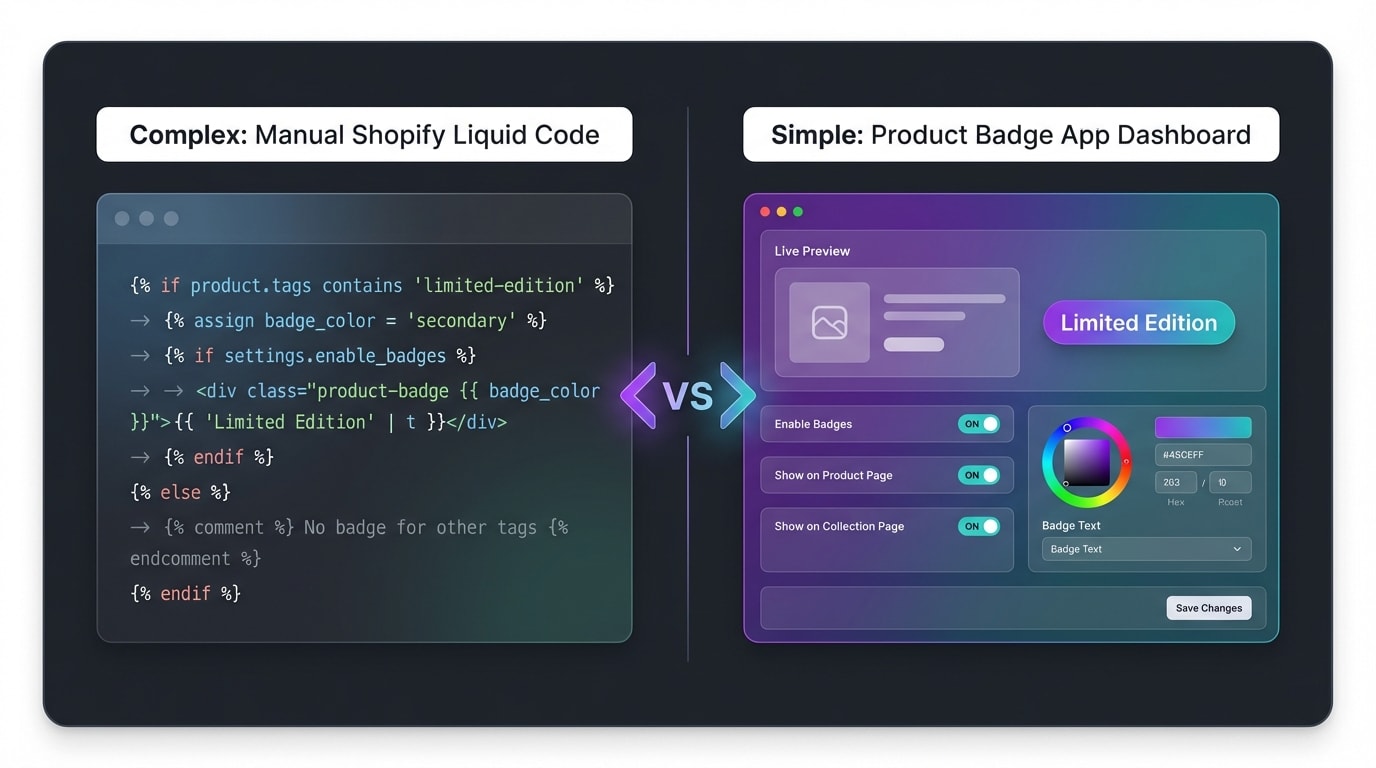
Choosing the right localization path depends on your technical comfort and catalog size.
1. Native Shopify Localization (Liquid & JSON)
The native method involves using Shopify Markets and JSON locale files.
- Pros: This approach is completely free and lightweight. It has zero impact on page load speed and provides excellent technical SEO benefits.
- Cons: You must dig into Liquid code to wrap text in translation strings. This method is not scalable if you manage hundreds of custom promotional labels that change weekly.
2. General Translation Apps (Weglot, Langify)
General apps attempt to solve the issue by scanning your entire front-end code.
- Pros: They auto-translate most text on the page instantly with minimal setup.
- Cons: These apps frequently break badge CSS styling when word counts expand. They also regularly fail to detect dynamic inventory badges tied to specific product variants.
3. Dedicated Badge Apps (Fordeer)
Using a specialized app for product labels simplifies the entire process.
- Pros: You can set up rules to display entirely different badge designs based on the active language locale. Visual editors handle text expansion automatically, and you never have to touch a single line of code.
III. 5 Strategies to Translate Your Product Badges
Ready to fix those stubborn English labels on your localized storefronts? Here are the most effective ways to configure your Shopify badge for multiple languages. These strategies range from quick app fixes to advanced Liquid edits.
1. Wrap Hardcoded Text in Liquid Translation Filters
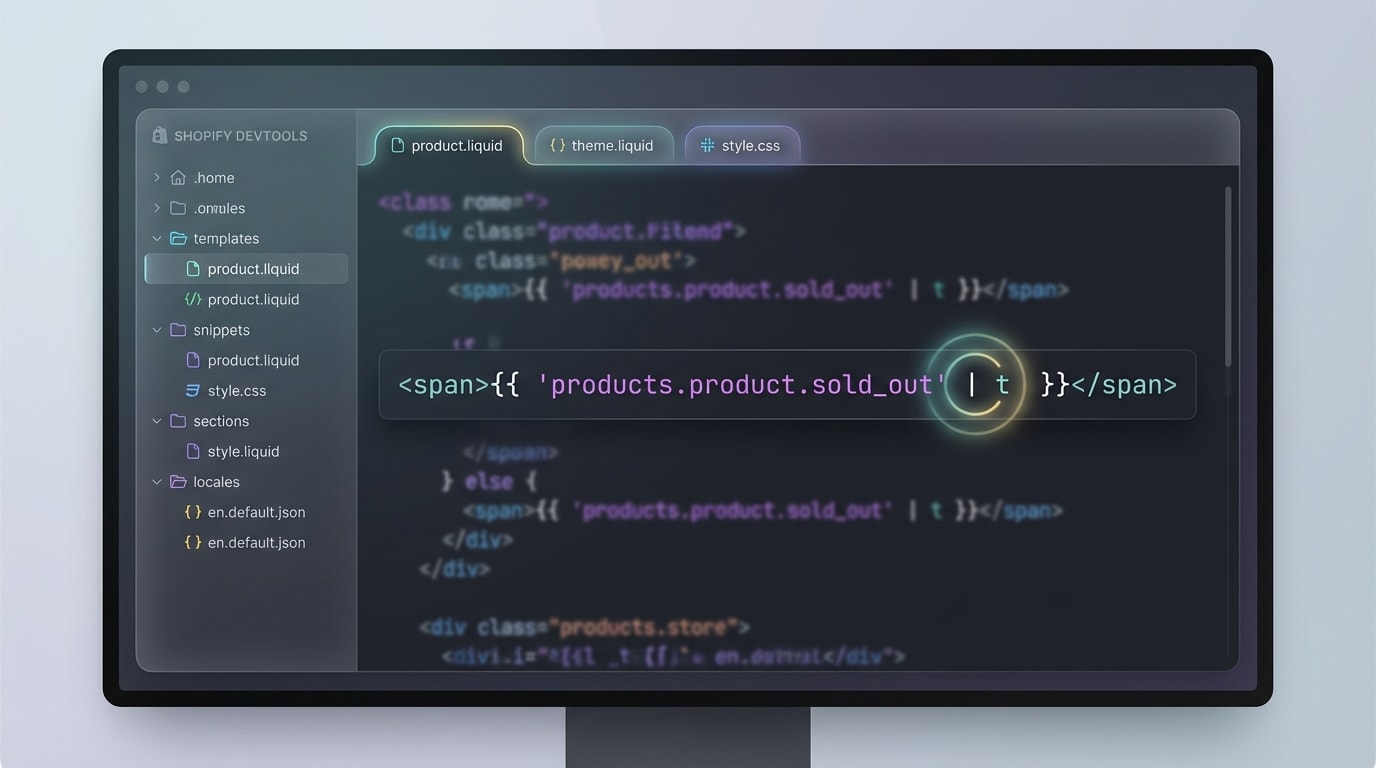
Using the 't' filter is the native way to ensure your theme recognizes text across languages.
Standard translation apps cannot see labels hardcoded into your snippet files. Replacing raw text with Shopify's internationalization Liquid filters allows your translation app to detect and translate the string.
Here is how to implement this fix:
- Go to your theme code and find your badge snippet file (usually
snippets/product-badge.liquid). - Look for raw text like
<span>Bestseller</span>. - Change it to
<span>{{ 'products.badges.bestseller' | t }}</span>. - Add the corresponding translation string to your
en.default.jsonand other locale files.
Your localization app will now successfully pick up the term.
2. Use the CSS Pseudo-Translation Method
Sometimes you want to change the badge color based on cultural preferences alongside the text translation. The W3C CSS :lang() pseudo-class lets you style elements specifically based on the active language of the HTML document.
Here is how to set this up:
- Ensure your theme outputs the correct language tag in the header (like
<html lang="fr">). - Open your
base.cssortheme.cssfile. - Apply language-specific rules to your badge class:
/* Default English Badge */
.custom-badge {
  background-color: #000;
}
/* French Badge Override */
.custom-badge:lang(fr) {
  background-color: #004B87;
}
Pro Tip: This is incredibly useful for seasonal sales that only apply to specific regions. It allows you to tweak visual emphasis based entirely on the localized URL subfolder.
3. Leverage Metafields for Dynamic Inventory Labels
Managing custom labels across ten different languages quickly becomes a data entry nightmare. Online Store 2.0 allows you to connect Metafields directly to text blocks.
Follow these steps to build dynamic badges:
- Create the Metafield: Go to Settings > Custom Data > Products. Create a single-line text field called Custom Badge.
- Add to Theme: Open your Theme Editor. Add a text block over your product image and connect it via the dynamic source icon to your new Metafield.
- Translate: Open the Shopify Translate & Adapt app. Your new Metafield will appear as a translatable block for every active language on your store.
4. Replace Image-Based Badges with CSS Overlays
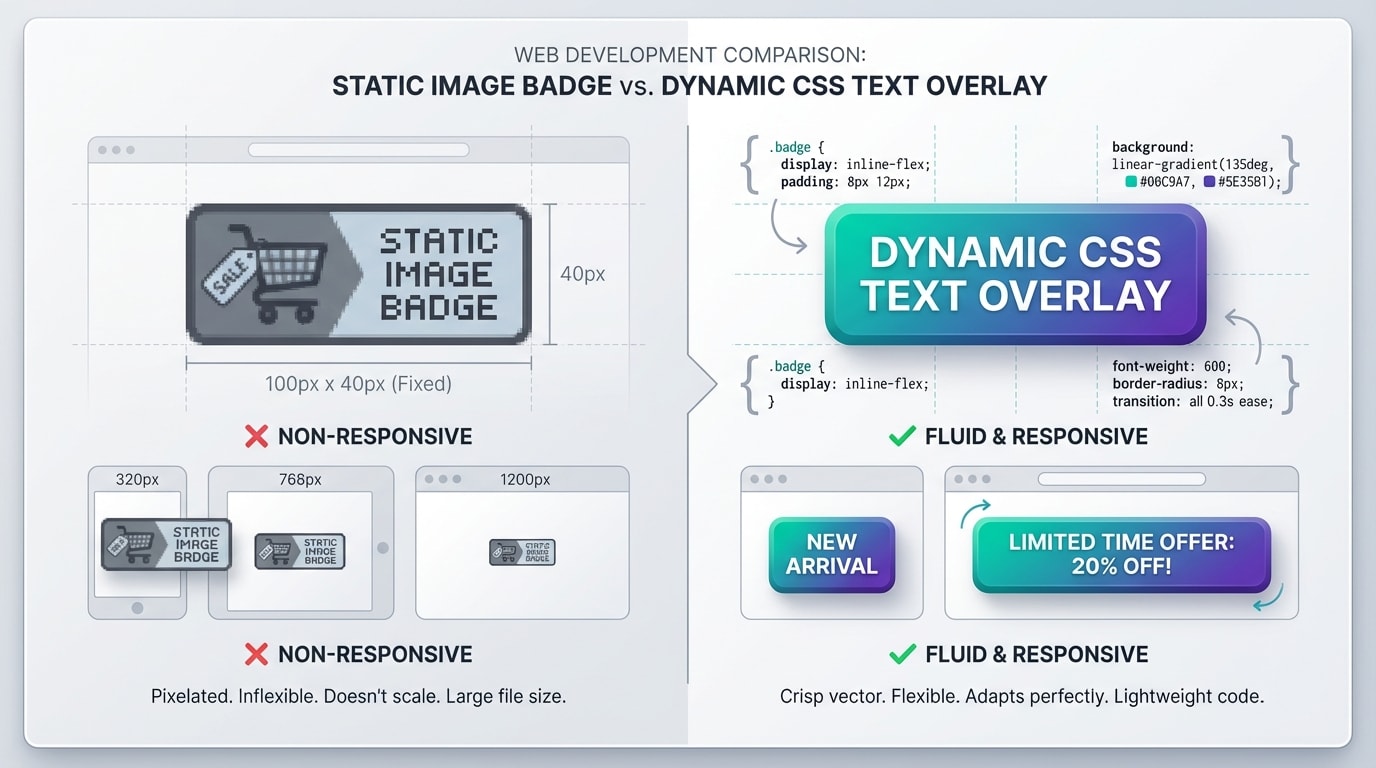
Always separate your text from your graphics for seamless internationalization.
If your product badge is a PNG with text baked into the graphic, no app can translate it. You must separate your text from your images.
Update your designs using this method:
Redesign your assets: Create your badges as blank geometric shapes (circles, ribbons, or flags) with no text inside them.
Layer HTML text: Use CSS absolute positioning to place translated text strings directly over the blank badge graphics.
Use dynamic Alt Text: If you absolutely must use distinct images per region, ensure your Alt Text dynamically pulls the active locale variable for multi-regional SEO accessibility.
5. Utilize a Dedicated Product Label App
If editing Liquid theme files and writing CSS rules feels too risky for your live store, leveraging a specialized application is the safest route. For a deep dive into mastering this strategy, read our Product Labels & Badges for Shopify: CRO Encyclopedia (2026).
How to implement a dedicated solution:
- Install a dedicated tool: Use an app like Fordeer Product Labels & Badges.
- Design visually: Create your labels using the drag-and-drop editor to ensure the text remains independent of the background shape.
- Sync with locales: Utilize built-in multi-language support to input your translations directly into the dashboard. The app will automatically read the buyer's browser language and render the correct badge instantly.
IV. Additional Considerations for Global Design
Translating the words is only half the battle. Once your Shopify badge supports multiple languages, you must ensure the design holds up under international layout variations.
1. Handling Text Expansion
Translated text almost always expands. The English word "New" is 3 letters. The French equivalent "Nouveau" is 7. If your badge has a fixed width in your CSS files, the expanded text will overflow and break your layout.
Always use padding instead of fixed width and height for your badge containers. Add a maximum width property with a text overflow fallback to keep your grid perfectly aligned.
2. Right-to-Left (RTL) Language Alignment
Expanding into Arabic or Hebrew markets causes your entire site layout to flip. Badges positioned in the top-left corner might suddenly overlap with critical product UI elements in an RTL layout.
Use CSS logical properties like inset-inline-start instead of traditional left or right alignments. This ensures your badge automatically mirrors its position based on the language direction without requiring duplicate CSS files.
3. SEO and URL Slugs
Dynamically injected badges can cause layout shifts that hurt your Core Web Vitals. Always reserve space for your badges in your CSS grid before the translation loads.
Confirm that the dynamically loaded language matches the subfolder URL (like /fr/ or /de/). This helps Google correctly index the localized version of your page, complete with the appropriate translated promotional labels.
V. Conclusion
Fixing your Shopify badge for multiple languages does not have to be a headache. Whether you choose to dive into your theme's Liquid files, utilize CSS pseudo-classes, or let a dedicated label app handle the heavy lifting, ensuring every detail speaks your customer's language is vital.
You have already done the hard work of localizing your catalog. Do not let a hardcoded sticker cost you conversions abroad. Take an hour this week to audit your international product pages and implement these exact translation strategies. Start with your top-selling products and scale your localization efforts from there. Each correctly translated badge will instantly boost international buyer confidence.
Follow the Fordeer Team for more useful updates!
- Install Fordeer Apps for Free
- Get immediate assistance by chatting with us
- Join Fordeer Commerce Community for fresh app updates, expert tips, and private deals.