

Shopify Product Image Overlays and Labels: The Complete Setup Guide

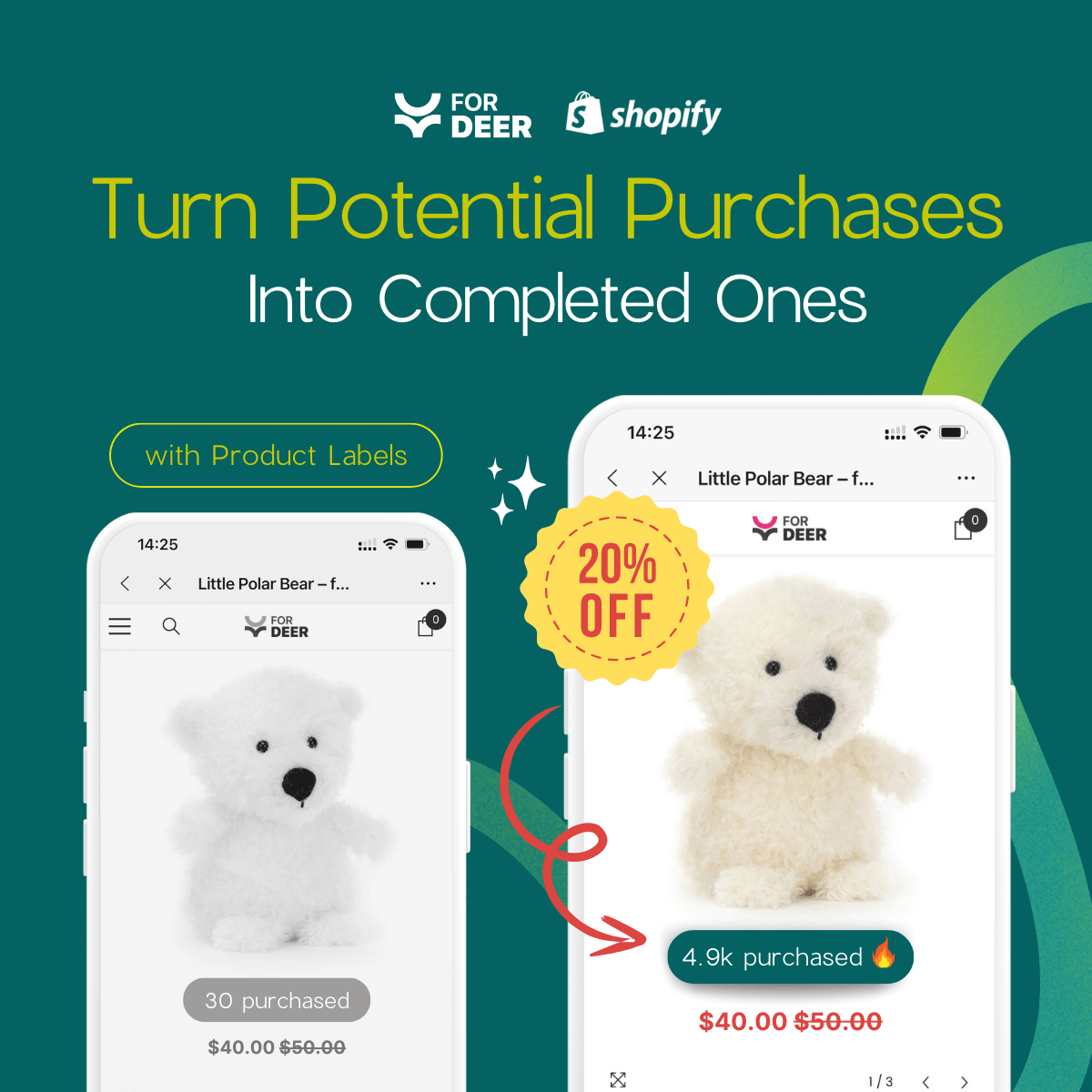
Product badges are proven conversion boosters. There is a hidden catch. Most merchants do not realize heavy image scripts can silently destroy store loading speeds. You add a simple sale badge, and suddenly your Core Web Vitals tank due to massive layout shifts.
Finding the right way to implement a Shopify product overlay label is critical. Whether weighing app costs against manual Liquid code editing, the goal remains the same. You need to capture middle-of-funnel shoppers without compromising technical SEO or user experience.
In this guide, we break down the performance paradox of product overlays. You will learn whether to use apps or code, how to navigate specific theme setups like Symmetry, and practical strategies to deploy high-converting badges safely.
Let's get started.
I. Overview of the Performance-Conversion Paradox
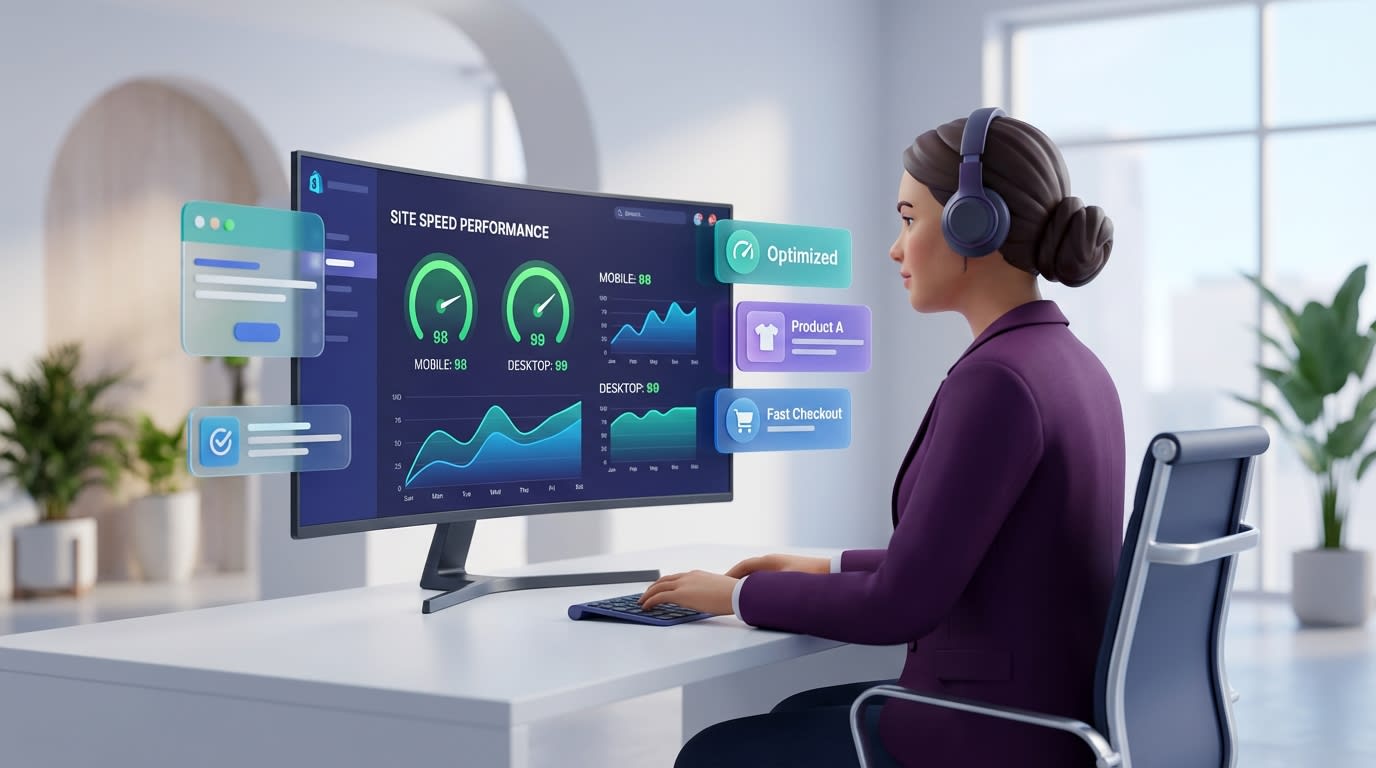
Balancing high-converting product overlays with technical site performance
Balancing high-converting product overlays with technical site performance requires strategy. Here is what you need to know about the current eCommerce landscape.
1. The Conversion Benefit
Urgency and FOMO (Fear Of Missing Out) are powerful psychological triggers. Middle-of-funnel shoppers are actively evaluating their options. They need a final push to complete their purchase.
Adding a clear visual cue helps them decide faster. Data shows that conversion rates increase by up to 15-20% when using trust badges or urgency labels. A strategically placed badge transforms a casual browser into a paying customer.
2. The Speed and SEO Trap
Visual appeal means nothing if your page takes five seconds to load. Cumulative Layout Shift (CLS) measures how much your page content moves around during loading. Poorly coded overlays block the main thread and cause high CLS scores.
When you prioritize design over technical performance, your organic rankings suffer. Google penalizes slow sites. You must optimize your badges to protect your Core Web Vitals.
3. The Google Merchant Center Risk
Google enforces strict compliance rules for product feeds. Images with non-compliant text overlays lead to immediate item disapproval.
You must understand the difference between on-site overlays and main feed images. Your storefront can display bold sale banners. Your Google Shopping feed requires clean, distraction-free product photos. Getting this wrong suspends your advertising account.
II. App Installation vs. Manual Liquid Code
If you want to add label to product overlay elements, you generally face two paths. You can write manual theme code or utilize a dedicated app from the Shopify App Store.
1. Manual Liquid Code Editing
Writing your own markup gives you complete control over your storefront layout.
- Pros: There are no recurring monthly fees. You maintain a lightweight codebase.
- Cons: High complexity requires developer knowledge. It is also hard to schedule updates for seasonal events.
- Best for: Technical merchants with static inventory needs who want a purely native solution.
2. Utilizing Dedicated Shopify Apps
Apps provide an efficient shortcut for busy store owners who want to scale quickly.
- Pros: You get zero-code installation and dynamic inventory tracking. An automated sale badge scheduler saves hours of manual work.
- Cons: You might face potential monthly costs. There is also a risk of heavy third-party scripts if you choose the wrong app.
- Best for: Store owners who need scalable, speed-optimized product labels without hiring a developer. To see these tools in action, read how product badges can make your products stand out and drive sales.
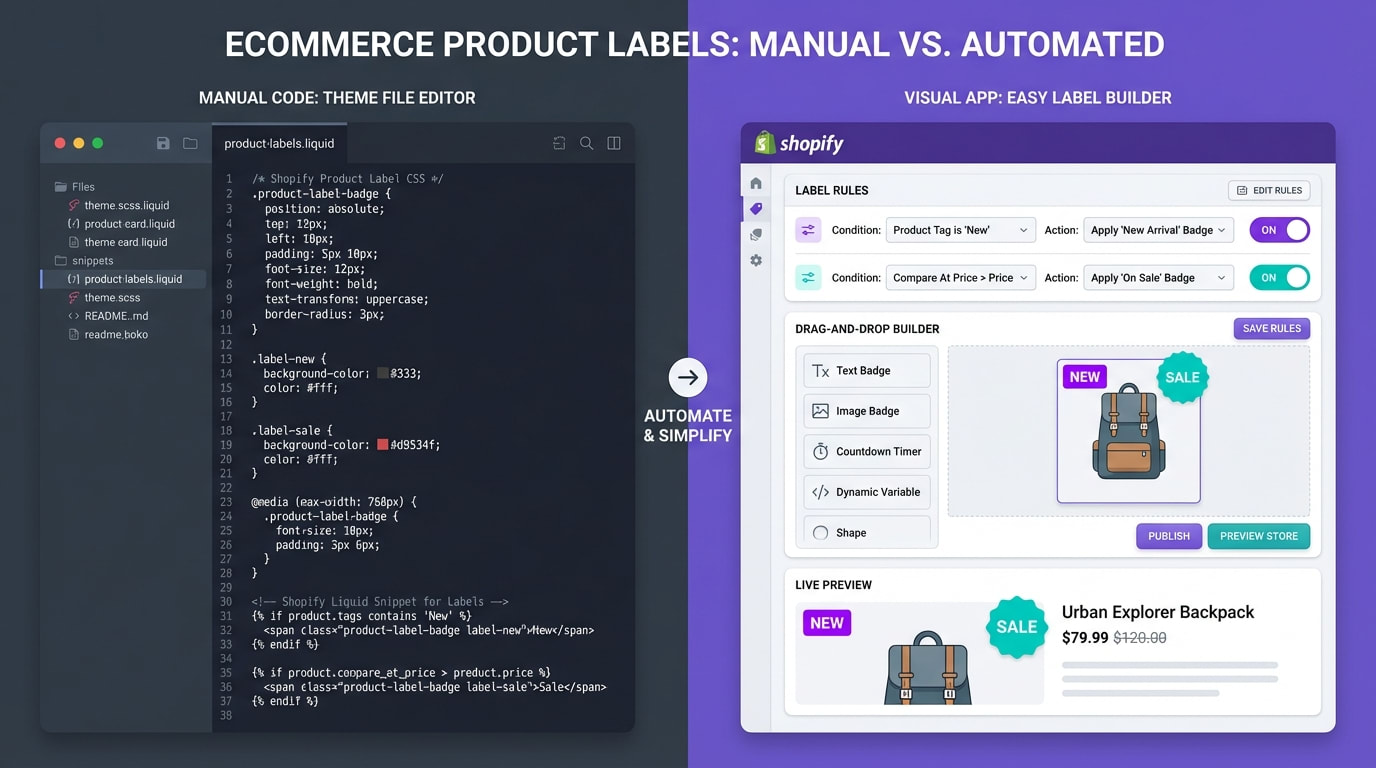
Comparing development time vs app convenience
III. 6 Strategies to Maximize Your Product Overlays
Adding a label is just step one. To truly leverage a Shopify product overlay label without hurting your site, you need a strategic approach to implementation and performance.
1. Prioritize Lazy Loading and SVG Formats
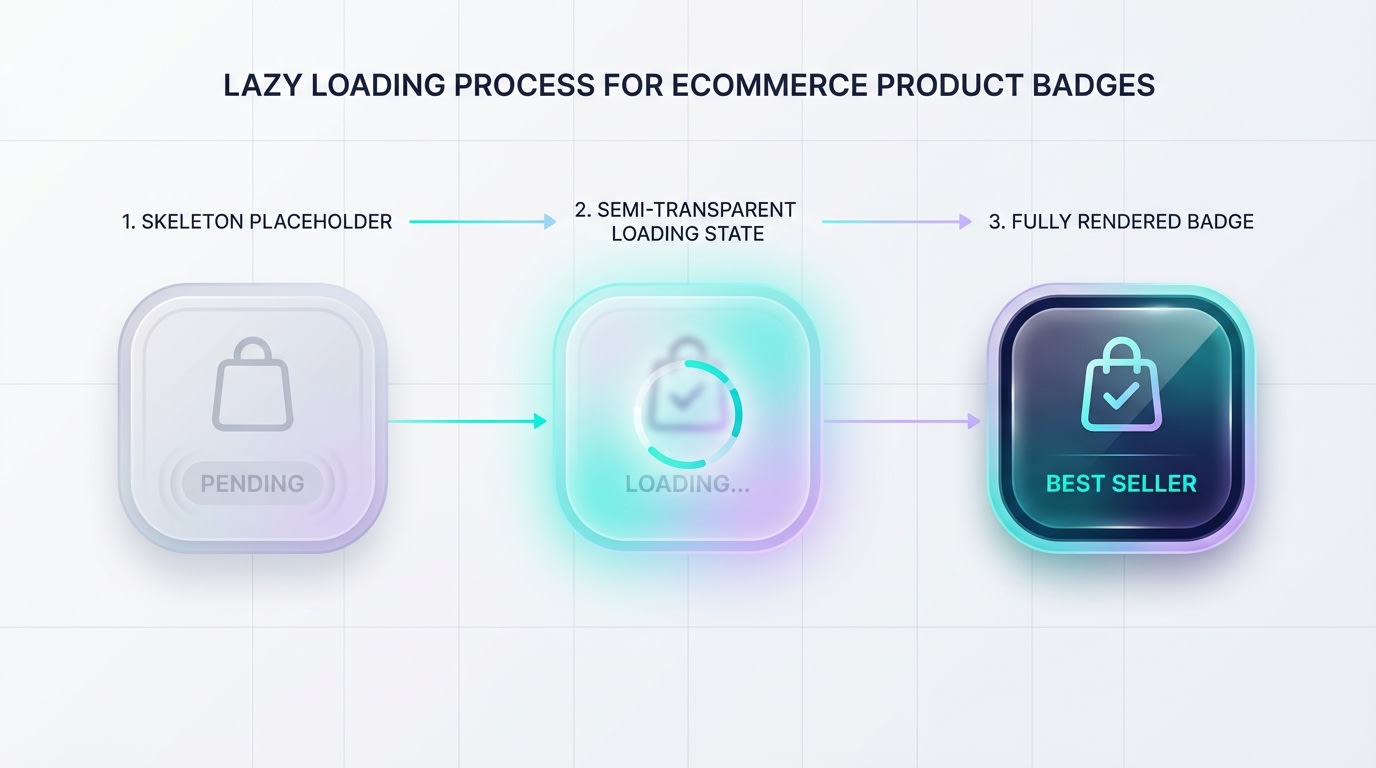
Optimizing badge delivery for Core Web Vitals
Heavy PNG overlays are a common cause of slow load times. To protect your SEO, technical optimization is non-negotiable.
Why this matters: A high-converting badge is useless if Google de-ranks your product page for poor performance.
Here is how to optimize:
- Use vector graphics: Always opt for SVG formats over standard images. This keeps file sizes negligible.
- Enable lazy loading: Ensure your overlay scripts load asynchronously. They must not block the main product image rendering.
- Monitor CLS: Test your product pages in PageSpeed Insights. Verify the badge does not push other elements down as it loads.
2. Implement Dynamic Inventory-Aware Badges
Static badges fade into the background. A modern dynamic inventory overlay Shopify setup needs to react to real-time store data to create genuine urgency.
- Connect to inventory logic: Set up conditional rules. Trigger specific badges when stock drops below a certain threshold.
- Use specific numbers: Replace generic callouts with a dynamic "Only 3 Left" overlay.
- Automate the removal: Ensure the badge automatically swaps to "Sold Out" when inventory hits zero. This prevents customer frustration.
3. Exclude Badges from Google Shopping Feeds
One of the biggest pain points for merchants scaling their ads is getting their products disapproved by Google.
Why this matters: Google requires clean, white-background product images for the Merchant Center compliance rules.
Here is how to comply:
- Use non-destructive editing: Never permanently burn the label into your original product image file.
- Apply via CSS/HTML layer: Serve the overlay as a visual layer on your storefront only.
- Check feed mapping: Verify your XML feed or API connection pulls the raw image source. It should not pull the rendered storefront view.
Pro Tip: Look for apps that explicitly mention Merchant Center compliance to ensure your Google Ads run uninterrupted.
4. Optimize Viewports for Mobile Shoppers
What looks like a subtle corner badge on a desktop monitor can completely obscure your product on a smartphone screen.
- Set maximum width constraints: Use CSS relative units like percentages. Do not use fixed pixels for your mobile responsive product badges.
- Test touch targets: Ensure the overlay does not block users from clicking to view the next image in your carousel.
- Use mobile-specific positioning: Consider moving the overlay below the image or shrinking it specifically for mobile viewports.
5. Automate Scheduling for Seasonal Events
Manually turning badges on and off at midnight during Black Friday is a recipe for errors and burnout.
Why this matters: Time-limited sales require precise execution to maintain credibility with shoppers.
Here is how to automate:
- Build a promotional calendar: Map out your seasonal sales events months in advance.
- Set start and end rules: Program your overlays to activate automatically at midnight. Have them revert to normal pricing displays when the sale ends.
- Batch apply to collections: Do not tag individual items. Apply the scheduling logic to entire product categories.
6. Leverage Pre-Designed Free Templates
You do not need to hire a designer to get professional callouts for your store.
- Search for native solutions: Look for a Shopify product overlay label template within your theme settings first.
- Utilize freemium apps: Many top-tier apps offer a Shopify product overlay label free tier. These often include extensive basic templates. For a deep dive into setup and design inspiration, explore our Product Labels & Badges for Shopify: CRO Encyclopedia (2026).
- Match your branding: Select templates that allow custom hex codes. The badge must feel native to your store aesthetic rather than looking like spam.
IV. Special Considerations: The Symmetry Theme
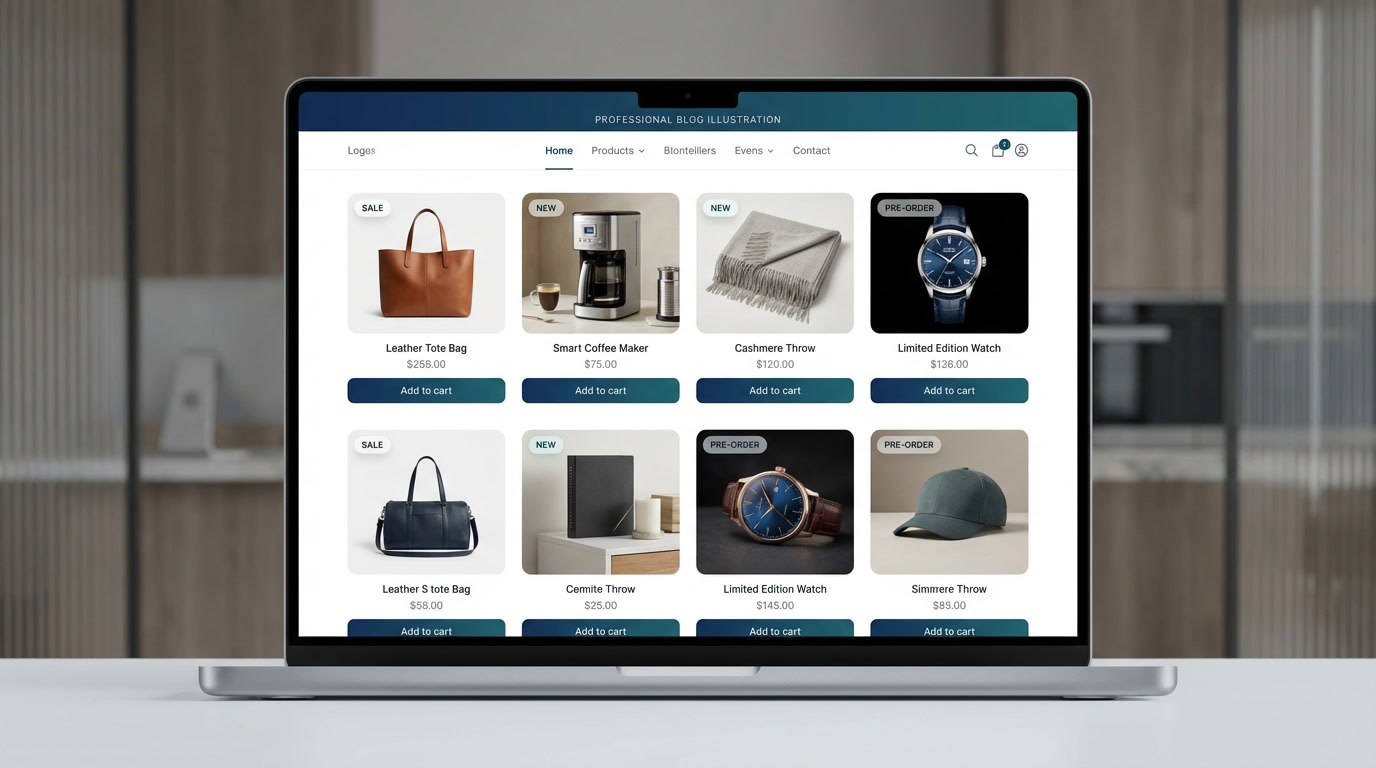
Handling custom Liquid architecture in premium themes
Merchants frequently ask how to integrate custom labels into premium themes. The Symmetry theme overlay configuration by Clean Canvas presents a common challenge.
1. Working with Symmetry's Architecture
Symmetry handles product grid items differently than standard free themes like Dawn. Because it uses complex snippet structures for collection pages, injecting a standard HTML overlay often breaks the grid alignment.
If you are coding manually, you must locate the product-grid-item.liquid or equivalent snippet. The overlay logic needs to be placed exactly within the image wrapper div. Use CSS position: absolute while ensuring the parent container is set to position: relative.
2. Why Apps Are Safer for Premium Themes
Hardcoding overlays into Symmetry often requires constant maintenance whenever the theme receives an update.
This is where a dedicated product badge app proves its worth. High-quality apps use Shopify App Blocks and Theme App Extensions. These integrate seamlessly with Symmetry's architecture without altering the core Liquid files. This ensures your custom layout remains intact. Your store stays eligible for future theme updates from Clean Canvas without breaking your custom code.
V. Conclusion
Implementing a Shopify product overlay label is one of the fastest ways to increase your conversion rates. It must be done with speed and compliance in mind. By choosing the right tools, whether that means carefully editing your Liquid code or selecting a performance-first app, you can create urgency without sacrificing your Core Web Vitals.
You have the strategies needed to display inventory-aware badges safely and keep your Google Merchant Center feeds clean. Start optimizing your product images today and watch your middle-of-funnel traffic convert.
Follow the Fordeer Team for more useful updates!
- Install Fordeer Apps for Free
- Get immediate assistance by chatting with us
- Join Fordeer Commerce Community for fresh app updates, expert tips, and private deals.