

Shopify Collection Page Videos: How to Add Motion Without Overwhelming Shoppers

Are your collection pages acting like a static wall? For many Shopify merchants, collection grids are the leakiest part of the funnel. Customers scroll through rows of silent, motionless product images, get bored, and bounce before ever reaching a product page.
To capture attention, you need movement. Adding a shopify video for collection page header or product grid is a critical conversion rate optimization tactic. Implementing it correctly without tanking your site speed or wrestling with complex code can be frustrating.
In this guide, we break down everything you need to know about integrating video into your collections. From understanding Shopify's native file limits to using custom Liquid code and shoppable widgets, you will learn how to build interactive collections that actually sell.
Let's get started.
I. Overview of the "Static Wall" Problem
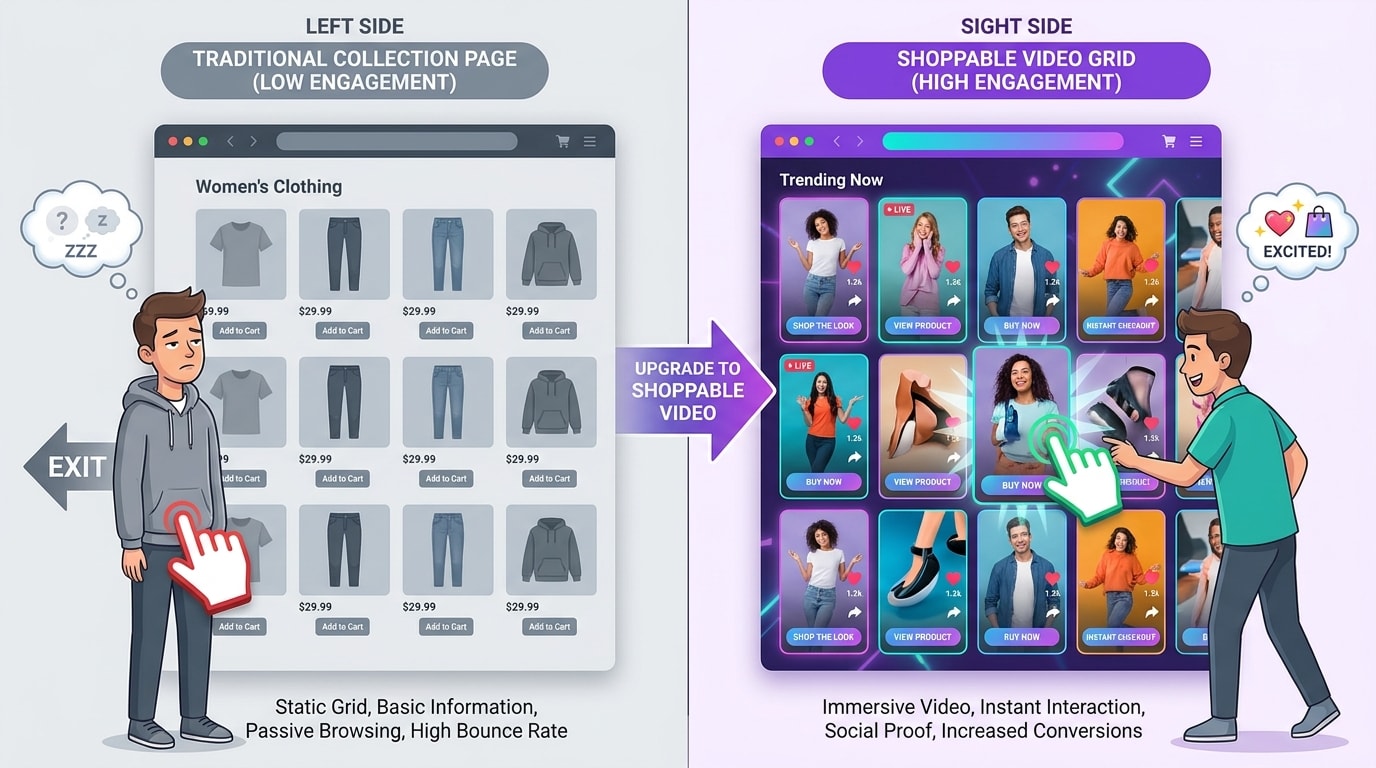
Shoppable video transforms standard collections into interactive product demonstrations.
Shoppers need visual stimulation to stay engaged. When your store relies entirely on standard layouts, you risk losing potential buyers to choice paralysis.
1. Why Standard Collections Lose Sales
Standard image grids provide zero context. Shoppers stare at a wall of identical thumbnails without understanding how the products look in real life. This static wall overwhelms users with choices but deprives them of the visual details needed to make a quick buying decision. Competitors treat video merely as decoration. You need to treat it as a primary conversion vehicle.
2. The Power of Interactive Collections
An interactive collection brings products to life before the user clicks. Adding motion reduces the path to purchase significantly. When customers watch a product demonstration directly from the grid, their time-on-site increases. The result? Higher click-through rates and better engagement across your entire product catalog.
3. Native Features vs. Dedicated Apps
You face a middle-of-funnel decision here. You can use native Shopify tools for basic banners, or install dedicated apps for shoppable experiences. Native features are free but limited. Dedicated apps require a small investment but offer advanced, no-code functionality like direct add-to-cart overlays.
II. Technical Requirements and Limitations
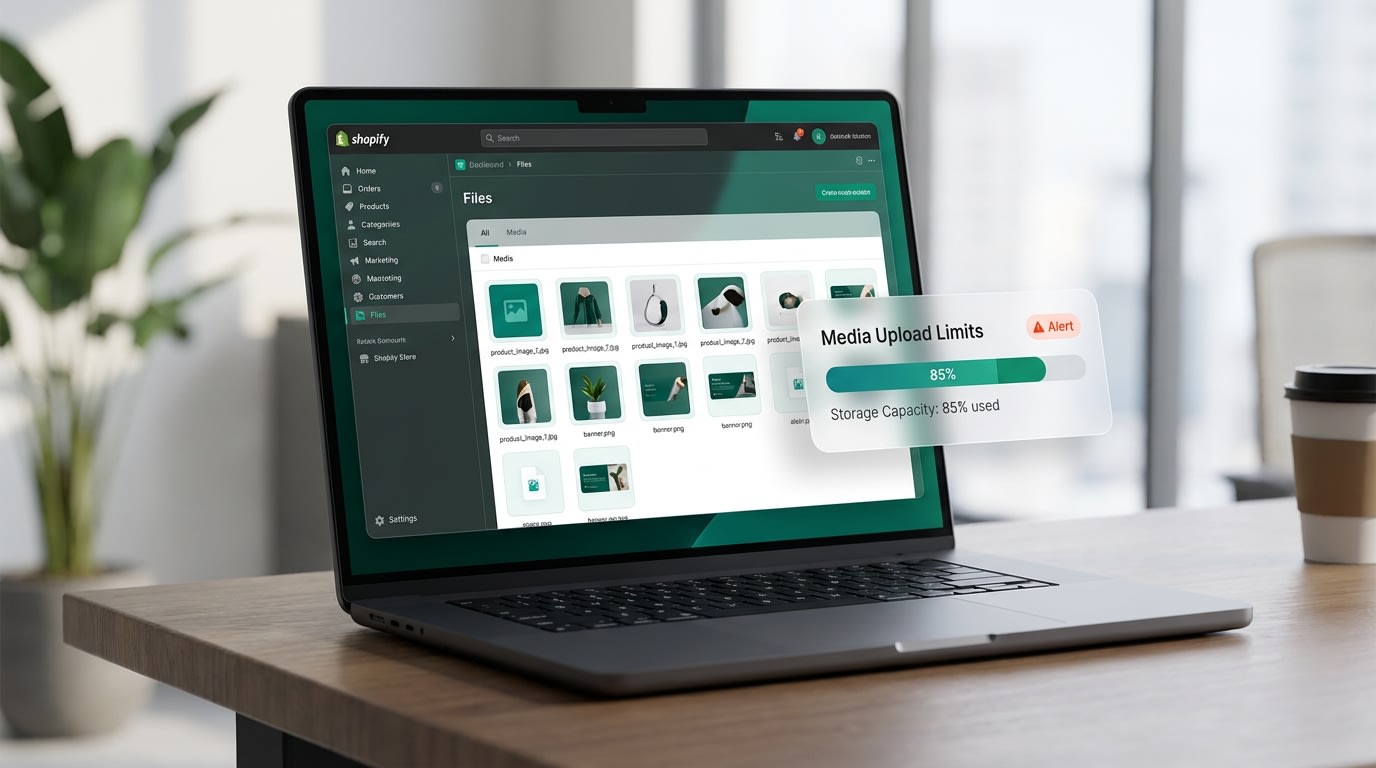
Understanding Shopify's native media constraints will save you hours of troubleshooting.
Before modifying your theme, you need to understand Shopify's infrastructure. Knowing these constraints prevents broken pages and slow loading times.
1. Strict File Size and Hosting Limits
The Shopify Help Center outlines specific media restrictions. You can have a maximum of 250 media items per product. For standard Shopify Admin uploads in the Files section, there is a strict 20MB video file limit. This makes high-resolution background banners difficult to implement without relying on external hosting platforms like Vimeo or specialized apps.
2. Manual vs. Automated Collections Context
Assigning videos differs entirely based on your collection type. Product media videos will not automatically play in standard collection grids without heavy theme modifications. If you rely on automated collections, pulling specific video assets for the header requires dynamic source mapping rather than a simple drag-and-drop.
3. The Page Speed Trade-off
Large video files destroy Core Web Vitals. Heavy media causes layout shifts and delays your largest contentful paint (LCP). Optimizing your MP4 or WebM files and utilizing the Shopify CDN are non-negotiable steps. We will cover exact performance optimization techniques shortly.
III. 5 Strategies to Add Video to Shopify Collections
The method you choose depends entirely on your current theme version and technical comfort level. Here is how you can break the static wall and drive more sales.
1. Leverage Shopify OS 2.0 Free Video Sections
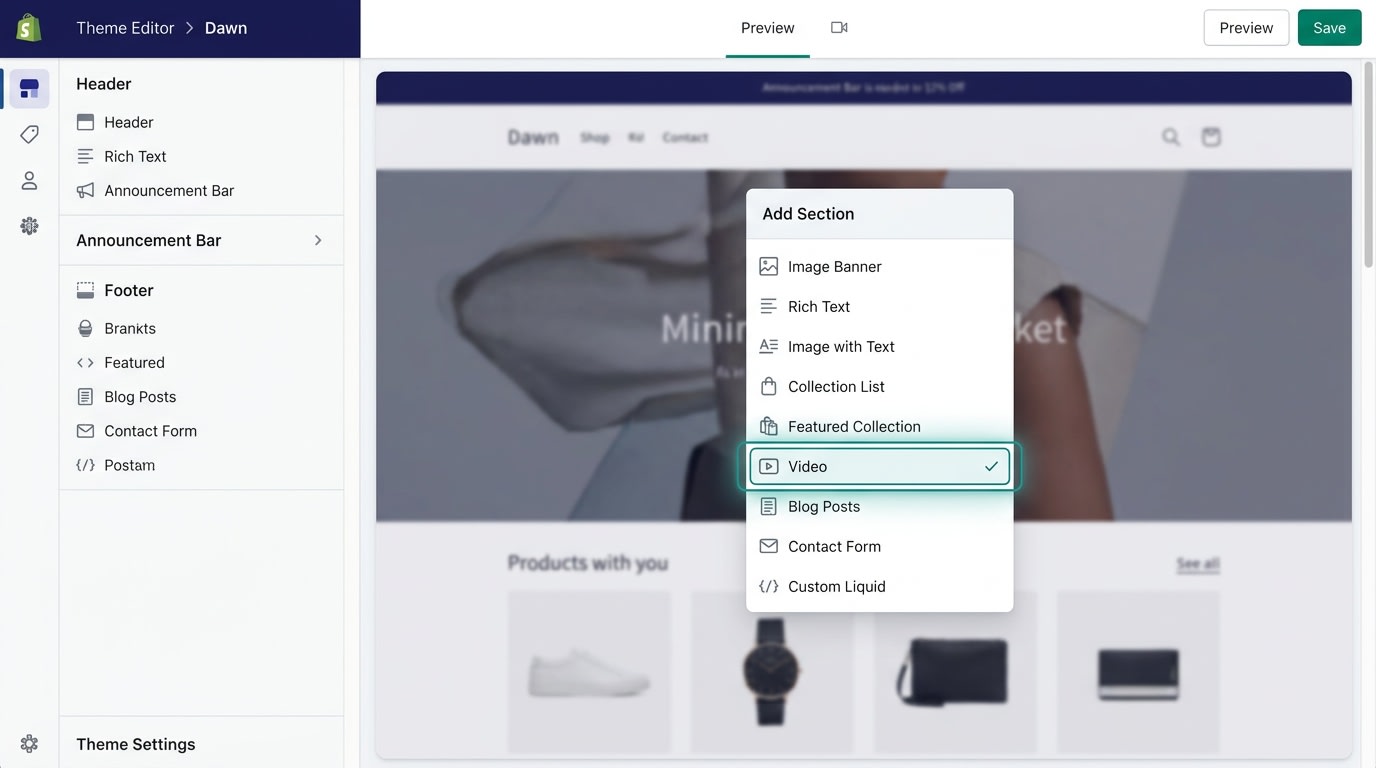
The Dawn theme offers native video blocks for collection headers.
If you are searching for a shopify video for collection page free solution, your best starting point is Online Store 2.0.
Why this matters: It requires zero code and works natively within modern themes like Dawn to add video banners to Shopify collections.
Here is how to implement it:
- Navigate to the Theme Editor: Open your specific collection page template.
- Add Section: Click 'Add Section' in the left sidebar and select the 'Video' block.
- Link your file: Paste your YouTube or Vimeo link. Alternatively, select a compressed file directly from your Shopify Admin.
While easy to set up, this method lacks shoppable overlays and restricts the video entirely to the header section.
2. Embed Video Icons on Product Grids
Many merchants struggle with videos not showing up on product grids despite uploading them to the product media gallery.
Why this matters: Adding a simple shopify video icon on collection page thumbnails signals to users that a demonstration is available. This curiosity gap significantly increases your click-through rate.
Follow these steps:
- Ensure the video is set as the second media item in your product settings.
- Open the Dawn theme editor and click on the product grid section.
- Check the box for "Show second image on hover" within the settings panel.
- Create a custom metafield to display a play button overlay if your current theme lacks automatic video preview support.
3. The Custom Liquid Method (For Advanced Banners)
For those who want autoplaying background videos without bulky YouTube branding, you need to build a custom liquid collection banner.
Why this matters: Native blocks often force player controls on the user. Custom Liquid gives you complete control over the aesthetic and behavior of the video.
How to code it:
- Upload to Files: Compress your MP4 to under 20MB. Upload it to Settings > Files and copy the URL.
- Create a Snippet: Go to Edit Code > Sections and add a new section called
custom-video-banner.liquid. - Add HTML5 Video Tags: Insert the
<video autoplay loop muted playsinline>tags. - Include standard styling: Add basic CSS for
object-fit: coverto ensure the banner responds perfectly on mobile devices.
Pro Tip: Always includemutedandplaysinlineattributes. If you forget these, iOS devices will aggressively block the video from autoplaying.
4. Upgrade to Shoppable Video Widgets (No-Code)
If you want your videos to drive revenue directly from the collection page, a native file upload is simply not enough.
Why this matters: Shoppable videos allow customers to click "Add to Cart" directly from a video overlay. Leveraging customer videos here is incredibly effective. For a deeper dive into sourcing this footage, read The Complete Guide to User-Generated Content for eCommerce to see how real customer videos boost conversion rates.
How to set it up:
- Install a Shoppable App: Use tools like ReelPik to import TikToks, Instagram Reels, or raw file uploads.
- Tag Products: Assign specific inventory items directly to the video timeline.
- Embed the Widget: Drag and drop the app block into your collection page template via the Theme Editor.
5. Dynamic Content via Metaobjects
If you manage dozens of collections, manually swapping out videos for seasonal sales like BFCM becomes a logistical nightmare.
Why this matters: Metaobjects allow you to build dynamic collection templates. These templates automatically pull specific videos based on the collection's backend tags.
Here is the process:
- Define a Metaobject: Navigate to Settings > Custom Data > Metaobjects and create a new definition called "Collection Video".
- Add Entries: Upload your seasonal promotional videos into the metaobject entries.
- Connect Dynamic Sources: Open your theme editor. Link your video block's source directly to the metaobject. The video will now automatically update whenever the collection data changes.
IV. Optimizing Video for Speed and SEO
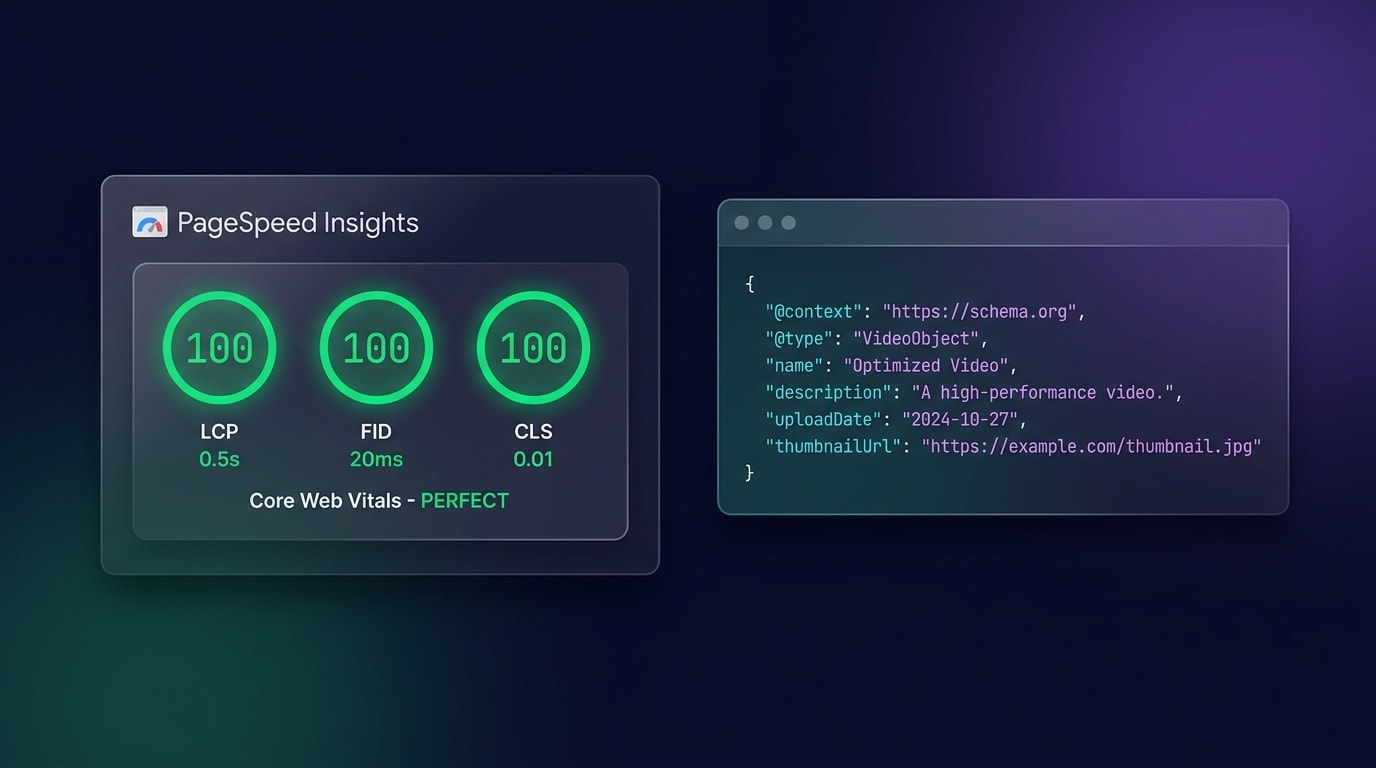
Balancing visual engagement with technical SEO is key to ranking your collection pages.
Adding motion is fantastic for keeping users on your site. However, it can destroy your Technical SEO if handled poorly. Here is how to keep your store lightning fast.
1. Lazy Loading and Performance
Never load a massive video file above the fold without a placeholder image. Use the poster attribute in your HTML to display a fast-loading WebP image while the actual video buffers in the background. If you rely heavily on media, consider dedicated video apps. They utilize advanced CDNs that deliver content much faster than native Shopify file hosting.
2. Format Selection: MP4 vs. WebM
Always prioritize the right file format. MP4 offers the broadest compatibility across older browsers and Apple devices. WebM provides significantly smaller file sizes for Chrome and Android users. Run all raw footage through compression tools like Handbrake before uploading. This ensures you stay well under the 20MB limit without sacrificing visual quality.
3. Video Schema Markup
Google cannot watch your video to understand what your collection page sells. You must add Video Schema (JSON-LD) directly to the collection page template. Properly indexed videos appear in the Google Video tab, driving free organic traffic to your store. While visuals drive traffic, building trust is what actually converts that traffic. Learn more about Converting Visitors into Clients: The Impact of Social Proof Widgets to pair your new videos with high-converting trust signals.
V. Conclusion
So there you go. Breaking the static wall does not have to be a technical nightmare. Whether you choose to implement a simple native video banner, dive into custom Liquid code, or deploy a high-converting shoppable video widget, adding movement to your collection pages is a guaranteed way to capture attention and reduce bounce rates.
You do not need to tackle all of this at once. Start by optimizing your highest-traffic collection page today and watch how engagement transforms into measurable revenue.
Follow the Fordeer Team for more useful updates!
- Install Fordeer Apps for Free
- Get immediate assistance by chatting with us
- Join Fordeer Commerce Community for fresh app updates, expert tips, and private deals.